
Our review
 Analysis by Lookingapps
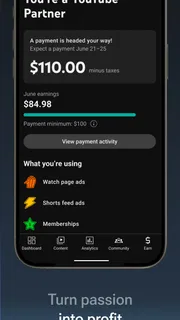
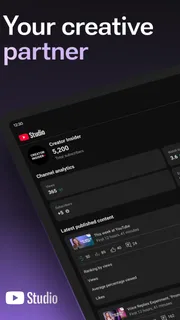
I think of YouTube Studio as the practical companion to a channel, rather than a smaller version of the main YouTube app. Its purpose is to help creators keep an eye on their work and handle channel tasks while away from a computer. That distinction matters: it can make routine checks and quick decisions easier, but it is not a replacement for a full desktop editing or production setup.
As a free app from Google LLC in the video-player and editing space, YouTube Studio is aimed at people who already publish on YouTube and want a more focused place to manage their channel. Its Teen age rating is worth bearing in mind for families, though the app is primarily a creator tool. The central question for a new user is not whether it can make videos, but whether its mobile workflow fits the way they plan, publish, and respond to viewers.
Finding your way around a busy channel
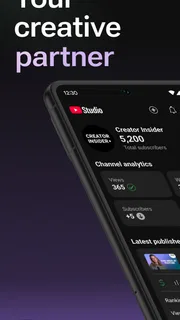
The strongest part of the experience is its clear purpose. Instead of mixing creator tasks with the viewing experience, the app keeps attention on the channel: what is happening with published work, what viewers are saying, and what needs a response. I find that separation useful when I open my phone with one specific task in mind. It is easier to stay focused than in the regular YouTube app, where watching videos can quickly distract from channel upkeep.
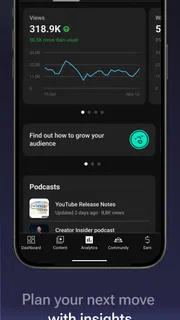
The interface is most comfortable for familiar, repeatable checks. A creator can build a quick routine around looking over recent activity, checking how a video is doing, and then moving on to comments or channel details. This is less like sitting down for a deep analytics session and more like opening a dashboard between other commitments. If you manage a channel regularly, that short-loop workflow is the app’s real convenience.
There is a learning curve for people who have never managed a channel before. YouTube’s creator language and analytics concepts can feel dense, and a chart or performance summary is only useful once you know what question you are asking. I recommend starting with a small habit—such as checking a recently published video and reviewing its comments—before exploring every section. That makes the app feel purposeful rather than like a wall of creator terminology.
With an average rating of 4.3 from around 2.4 million ratings, YouTube Studio is widely used, but popularity does not mean every creator will find its layout self-explanatory. I would treat the rating as reassurance that it serves a broad audience, not as proof that every menu will suit every workflow. The best test is whether you can reach the information you need without repeatedly losing your place.
Readability depends on the task
On a phone, a concise summary can be easier to scan than a crowded desktop dashboard. That helps when I only need to know whether a new upload is attracting attention or whether a viewer has left a question. But small-screen convenience has a trade-off: charts, detailed comparisons, and longer comment threads can require more careful reading than they would on a larger display.
More articles

Instagram Makes Everyday Moments Worth Sharing
A rare social app that can be a photo diary, a neighborhood window, and a lively conversation in the same session—though its best moments still require a little restraint.
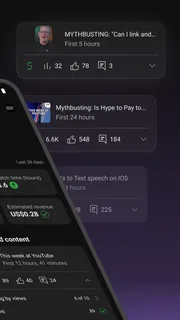
For a useful check-in, I would avoid trying to interpret every number at once. Compare a video with a clear question in mind: for example, whether its early response differs from what you expected, or whether viewers are asking about the same point. This is a better use of mobile analytics than treating every change as a verdict on the quality of a channel. A phone is excellent for noticing a signal; a computer is often better for investigating it in depth.
People who use larger text or display magnification may need to spend extra time moving through information, especially when several figures or controls appear together. I would not assume that a compact dashboard is automatically easy to read for everyone. If detail is tiring, use the app for high-level checks and save close analysis for a screen and setup that feel comfortable.
Touch, attention, and sensory load
Most of the value here comes from reading, selecting, and responding, rather than from long-form video editing. That makes the app a reasonable fit for short creator tasks, but it still asks for accurate touch input. Reviewing a comment thread, choosing the right video, or changing a channel detail can be fiddly if you have limited dexterity or find small touch targets difficult. I would do consequential edits slowly and confirm the selected item before saving or responding.
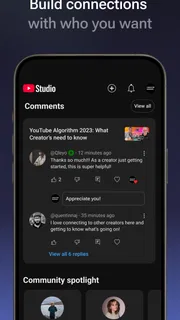
Comments also bring a human factor that is easy to overlook. A notification can tempt you to reply immediately, even when you are tired or in a public place. I find it wiser to use the app to identify messages that need attention, then write a considered response when I can concentrate. For a creator managing sensitive conversations, that small pause is more useful than treating mobile access as a demand to answer everything at once.
There is no single comfortable sensory setting for every person or environment. Bright screens, movement, notification sounds, and a stream of incoming activity can make quick channel checks distracting. I would keep the task narrow and use the phone’s own display and notification controls to make the experience more manageable. The app is most helpful when it reduces uncertainty, not when it becomes another source of interruptions.
Useful when the computer is out of reach
A realistic everyday case is a creator who publishes a video before leaving home and later has a short break between errands. They can open Studio to see whether viewers have begun responding, spot a question that deserves an answer, and check the video’s early activity without carrying a laptop. That is a practical advantage over relying on the regular YouTube app, which is primarily built around watching rather than channel administration.
The app is also handy for maintaining a small channel in brief sessions. A few minutes may be enough to scan comments, notice a change worth investigating, or handle a simple channel task. Those short visits can prevent creator work from piling up until the next time you are at a desk. On the other hand, if your work involves detailed planning, comparing many videos, or making complex production decisions, I would use Studio on a computer as the main workspace and keep the phone app for monitoring.
YouTube Studio has been available since June 26, 2014, and it has grown into a familiar mobile tool for creators. More than 100 million installs indicate how broadly it is used, but a large audience does not make it essential for every uploader. Someone who posts occasionally and rarely checks channel activity may be perfectly happy using YouTube’s regular app for viewing and a computer when management is necessary.
Where mobile management reaches its limits
The most important trade-off is depth. A phone makes it easy to check a channel from almost anywhere, but that does not make every creator task pleasant on a small screen. Long sessions of comparing performance, handling lots of comments, or making careful changes can feel slower and less comfortable than working with a keyboard and a larger display. I see the app as a companion for maintenance and awareness, not as a promise that every part of channel work can be done equally well on mobile.
It also helps to separate channel management from video production. The app is not the tool I would choose when I want to assemble footage, shape a detailed edit, or develop a complicated visual sequence. For that, a dedicated editing app or desktop editor is a better fit. Studio becomes valuable after or around production: it gives creators a way to stay connected to the channel without confusing that job with making the video itself.
For people who find screen reading or touch navigation difficult, the same portability that makes the app convenient can be a drawback. A small device may force more scrolling and more precise interaction. I would not recommend relying on a phone alone if channel tasks are difficult to complete comfortably there; using a tablet or computer for involved work can make the overall process more manageable. The right device is part of the experience, not an afterthought.
There is another practical boundary: access to a channel on a phone is most useful when the owner can give the task proper attention. Checking a comment while walking, driving, or juggling another activity is not a good trade. I prefer to use these quick tools only when I can stop, read carefully, and avoid replying impulsively. Convenience should make channel care easier, not pressure creators into being constantly available.
Who I would recommend it to
I would recommend YouTube Studio to active creators who want a direct way to keep up with their channel between desk sessions. It is especially useful if you publish regularly, value timely awareness of viewer responses, or want a focused alternative to navigating channel tasks through a general video-watching app. Its free price makes it easy to try as a companion, while the scale of its audience—around 37,000 written reviews alongside its many ratings—suggests it has become a routine tool for many creators.
I would be more cautious about recommending it as a person’s only channel-management setup. New creators may benefit from learning the broader tools on a computer, where there is more room to understand performance and make deliberate changes. Creators who work with extensive comment queues or detailed reporting may likewise prefer a desktop workflow for the heavy lifting, checking Studio on mobile only for brief updates.
If you are deciding whether to install it, ask yourself what you want to do away from your desk. If the answer is “check what is happening and handle a few straightforward channel tasks,” the app is a sensible choice. If you mainly want to watch videos, the regular YouTube app is the more natural option; if you want to edit footage, choose an editor. That distinction prevents disappointment and makes the app’s strengths easier to appreciate.
An inclusive verdict on everyday access
My overall impression is that YouTube Studio makes channel management more reachable across everyday situations, but it does not remove the barriers that come with small screens, dense information, and precise touch interaction. Its focused role helps reduce distraction for creators who know what they need to check. Its limits become more noticeable when a task demands sustained concentration, extensive reading, or detailed control.
The best way to use it is as a flexible, brief-access companion—not a substitute for every creator tool. I would keep it for checking channel activity and responding thoughtfully when a phone is the most convenient option, then switch to a larger screen whenever accessibility, comfort, or complexity calls for it. For creators who value that balance, YouTube Studio is a useful addition to the routine, with a clear purpose and realistic limits.
Pros
- Review video performance through clear analytics dashboards.
- Reply to viewer comments directly from the mobile app.
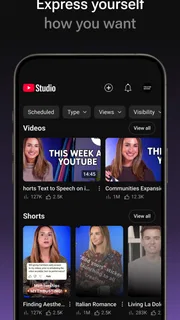
- Manage video details and visibility while away from a computer.
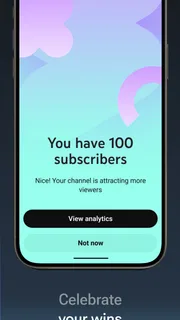
- Receive notifications about channel activity and new comments.
- Switch between multiple channels linked to your account.
Cons
- Some advanced channel settings are available only on desktop.
- Analytics can take time to update after a video is published.
- The app requires a Google account to manage a channel.
- Certain features may be unavailable for smaller or newer channels.
- Managing long descriptions can be awkward on a phone keyboard.


