





Our review
 Analysis by Lookingapps
When I’m signing in to a work account or checking a service that asks for an extra verification step, I want the process to be quick without making account protection feel like another chore. Microsoft Authenticator is designed for that job: it helps manage sign-ins and verification for accounts, with the aim of reducing how often I need to type a password. In my experience, its value is less about flashy features and more about making a routine security step easier to live with.
How fast does signing in feel?
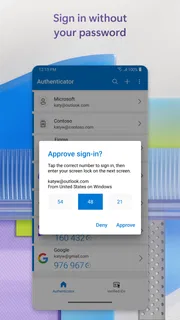
The app is most useful when it is already set up for the account I need. A verification request can then be handled from the phone rather than by repeatedly entering credentials, which makes a noticeable difference when I’m switching between work tasks or signing in on a device that isn’t my own. The exact flow depends on the service and account, so I wouldn’t expect every sign-in to look identical.
That distinction matters: an authenticator can make verification faster, but it cannot remove every pause in a sign-in. I still need to notice the prompt, check that it relates to my attempt, and complete whatever confirmation the account requires. If I’m in a hurry, approving the first notification without checking it is the wrong shortcut. Convenience only helps when I keep the security check deliberate.
For a first-time user, setup is the part that takes more attention than daily use. I’d add the account while I have access to its normal sign-in method and can follow its setup instructions, rather than waiting until I’m locked out or rushing to join a meeting. That small bit of preparation makes later verification feel much less disruptive.
What it changes in an ordinary workday
Imagine I’m carrying a laptop between home and an office and need to sign in to a work account after reconnecting to a service. Instead of treating password entry as the whole process, I can use the app as the verification companion when that account supports it. The phone becomes part of the sign-in routine, but the task can feel simpler because I’m not relying on memory and repeated typing alone.
This is especially helpful for people who use several Microsoft-related services or need to verify work access regularly. Microsoft Corporation makes the app, and its focus is business account access rather than general password storage or a broad personal productivity suite. I’d recommend it to someone who wants a dedicated authentication tool and is comfortable keeping their phone close during sign-ins.
Busy moments and repeated prompts
The app’s benefit becomes clearer during a day with frequent account checks. A single verification may be barely noticeable; repeating the process across work sessions, devices, and services is where a phone-based authenticator can reduce friction. I find that it works best as a quiet part of a routine: keep the app available, respond to a prompt when I initiated the sign-in, and return to the task.
More articles

Instagram Makes Everyday Moments Worth Sharing
A rare social app that can be a photo diary, a neighborhood window, and a lively conversation in the same session—though its best moments still require a little restraint.
There is also a trade-off that is easy to overlook. If the phone is in another room, its battery is depleted, or I’m trying to sign in while the device is unavailable, the extra security step can become a delay rather than a convenience. That is not a reason to avoid authentication, but it is a reason to plan ahead. I would make sure I understand the account’s own recovery and alternate sign-in options before depending on any one device.
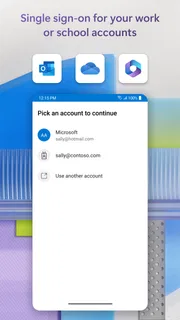
When multiple accounts are involved, I’d take a moment to identify which one a prompt belongs to before approving anything. This is a practical safeguard, not needless caution: a confirmation should match an action I just started. If an unexpected request appears, I would decline or leave it unanswered and check the account through its usual route instead of treating the prompt as routine.
Reliability, trust, and recovery planning
For an authenticator, reliability is not just whether the app opens quickly. It is whether I can use it when a service asks for verification and whether I have thought through what happens if the phone is lost, replaced, or temporarily unavailable. I wouldn’t treat installing the app as a complete recovery plan. Before making it central to important accounts, I’d follow each service’s setup guidance and keep any recovery method it offers accessible in a separate, sensible place.
This is one area where expectations should stay realistic. The app can assist with account verification, but the account provider controls its own sign-in and recovery process. A problem with a work account, for example, may need to be handled through the organization’s administrator or support route. Knowing that before an urgent sign-in issue is much better than assuming the authenticator alone can restore access.
In regular use, I’d judge stability by whether the verification flow is dependable enough to become routine, not by expecting every interaction to be instant. Network conditions, the account’s own checks, and the device’s state can all affect the experience. I would avoid blaming the app for every delayed sign-in, while still keeping a backup plan for situations where the phone cannot complete the step.
Device fit and practical constraints
Microsoft Authenticator is free, has an Everyone age rating, and its current version is 6.2609.6214. It requires Android 8.0 or later, so it is worth checking the operating-system requirement before planning to use it on an older Android phone. The app has been available since January 13, 2015, and its scale suggests that it is a familiar choice: it has more than 100 million installs, around 2.8 million ratings, and a 4.6 average. Those figures are useful context, though they cannot tell me whether it will suit a particular account setup or device.
I would not make claims about its battery use or speed on every phone; those can vary with device condition and how the app is used. For my own decision, the more practical question is whether I can keep the phone accessible and whether the required Android version is supported. If I use an older device that cannot meet that requirement, I’d look for another verification method supported by the account rather than assuming an update will solve it.
It is also worth distinguishing this app from a password manager. If my main need is to create, organize, and fill passwords across many unrelated services, I would choose a tool built specifically for password management. If my main need is a companion for account verification, particularly around work access, this is the more relevant kind of app. The two tools can serve different purposes rather than being direct substitutes.
Where it fits among alternatives
Compared with relying only on passwords, an authenticator adds a verification step that can make account access more involved but also less dependent on a password alone. Compared with receiving a code through another channel, using a dedicated app can keep the verification workflow on the phone; the best method still depends on what a particular service supports and what is practical for me. I would not switch an account’s sign-in method blindly just because one option sounds faster.
For someone already working within Microsoft’s account environment, the app is a natural place to start. For someone who needs a simple tool for one non-work account, another authenticator may be just as suitable if that service supports it and the person prefers its workflow. I’d choose based on the accounts I actually need to protect, the recovery arrangements available for them, and whether I’m willing to keep a phone involved in sign-ins.
The app is not the right fit for someone who expects it to eliminate every password, work without the phone, or solve account recovery automatically. It also may not suit a person who rarely signs in to supported accounts and finds an extra verification step more inconvenient than useful. In those cases, I would first review the account’s available security options and choose a method I can maintain reliably, rather than installing an app without completing setup.
My performance verdict
Microsoft Authenticator earns its place by making repeated verification feel like a manageable part of signing in, especially for people who use work accounts often. It is not a tool I’d judge by dramatic speed claims; the real improvement is removing some routine friction once accounts are configured. The experience still depends on the service, the phone being available, and sensible recovery preparation.
I’d recommend it to a friend who wants a dedicated business authentication app, has a compatible Android device, and is prepared to set up recovery thoughtfully. I would tell them to test the sign-in flow before relying on it for an urgent task and to check every prompt before confirming. That balanced approach is the difference between a handy security habit and a source of avoidable lockout stress.
Overall, Microsoft Authenticator is a practical choice for account verification rather than an all-purpose password solution. Its strong adoption and average rating make it a well-established option, but the deciding factor for me is fit: if my accounts use its verification flows and I keep my device accessible, it can make sign-ins smoother. If I need a password vault, a phone-free process, or a recovery tool that works independently of account providers, I’d look elsewhere for that specific job.
Pros
- Supports passwordless sign-in for Microsoft accounts.
- Can back up account credentials to the cloud.
- Offers number matching to help prevent sign-in approval mistakes.
- Works with many non-Microsoft services that use verification codes.
- Can manage passkeys for supported accounts.
Cons
- Cloud backup requires a Microsoft account.
- Restoring a backup may not recover every account type.
- Some sign-ins require an internet connection.
- Push approvals can be delayed by network or notification issues.
- Switching phones may require setting up certain accounts again.


