
Our review
 Analysis by Lookingapps
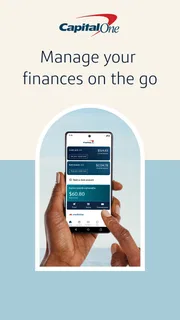
I would choose a bank’s mobile app based on the chores I actually need it to handle, not on how many buttons it puts on the screen. Capital One Mobile is most compelling if you already use Capital One and want routine account tasks close at hand: paying bills, checking activity, depositing a check, or locking a card. In my view, its main value is convenience tied to an existing banking relationship, rather than being an all-purpose finance hub for everyone.
What to consider before making it your banking app
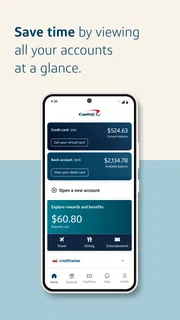
Start with a practical question: are your accounts and cards with Capital One? If so, a single app for everyday account management can cut down on switching between a bank app, a card issuer’s app, and a separate tool for simple payments. If your finances are spread across several institutions, however, a dedicated budgeting or account-aggregation app may give you a broader picture than one bank’s app can.
The app is a free finance app from Capital One Services, LLC. It is available to users aged Everyone, and its broad audience is reflected in its reach: it has over 50 million installs and a 4.5 average from around 1.7 million ratings. Those figures suggest that it is a widely used option, but they do not tell you whether it fits your own mix of accounts or preferred way of banking.
The most useful decision criterion is the balance between quick access and full control. A phone is handy for checking a recent transaction or handling an urgent card issue, but it is a small screen for reviewing complicated finances. I see this app as a strong companion for frequent, focused tasks—not necessarily the place to make every financial decision.
Where it earns a place on your phone
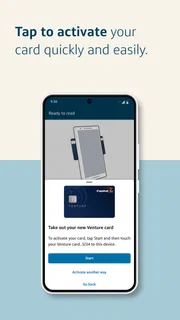
Card locking is a particularly practical tool when a card is misplaced. Rather than immediately treating the situation as a permanent loss, you can use the app to lock the card while you look for it. That distinction can matter when you have left your wallet at home, or suspect a card slipped into a bag. I would still contact the bank promptly if you believe the card has been stolen; an in-app control is useful, but it is not a substitute for taking the right action in a serious case.
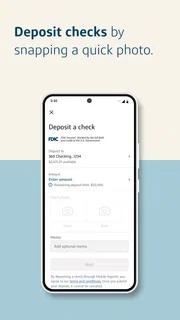
Check deposit is another feature that can save a trip when a paper check is the only payment method available. A useful habit is to deposit it somewhere with good lighting, check that the details are legible before submitting, and keep the paper until you are confident the deposit has gone through. The phone-based process is convenient, but it depends on getting a clear image and following the app’s instructions carefully. For a damaged or unusual check, another deposit method may be less frustrating.
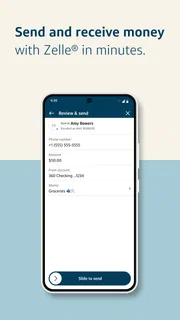
Bill payment can make the app more than a place to inspect balances. If you already manage your Capital One accounts there, paying a bill from the same place reduces the number of separate steps in a routine. I would make a habit of checking the selected payment account and date before confirming, especially when a deadline is close. The convenience of mobile payment does not remove the need to leave time for processing or to verify that a payment is recorded.
More articles

Instagram Makes Everyday Moments Worth Sharing
A rare social app that can be a photo diary, a neighborhood window, and a lively conversation in the same session—though its best moments still require a little restraint.
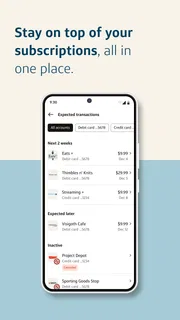
A small but useful workflow is to use the app immediately after a purchase rather than waiting until the end of the month. Checking recent activity can help you spot a transaction you do not recognize while it is still easy to remember where you were. That does not mean every unfamiliar merchant label is fraud; names on statements can differ from the sign on a shop. I would compare the amount and timing with receipts before raising a concern.
For a busy day, the benefits are cumulative. Imagine you are commuting, realize you left a card somewhere, and also need to make a payment before the evening. Being able to check the account, lock the card, and handle a bill from one banking app is a more direct response than searching through email, calling for a routine task, and opening several services. The app is at its best in these short, specific moments.
Where it differs from other finance options
Compared with a budgeting app, a bank’s own app has a narrower point of view: it is built around the financial relationship it serves. That can be an advantage for account actions such as locking a card or paying a bill, but it may be a drawback if your main goal is to see spending across multiple banks in one place. I would choose the budgeting category when planning and categorizing the whole household’s finances matters more than direct access to one institution’s services.
Compared with a bank website on a computer, mobile access is better for a quick check or an immediate card action. A larger screen can still feel more comfortable when reviewing lots of transactions, reconciling records, or working through a longer task. I would not force every banking chore onto a phone simply because the app makes basic ones convenient.
There is also a choice between managing accounts in a bank’s own app and using a general financial dashboard. The former is the natural fit when you want to act on a Capital One account. The latter may suit someone who values a consolidated overview more than institution-specific controls. These tools solve different problems, so replacing one with the other can leave a gap rather than simplify everything.
One limitation of relying on any single bank app is that it cannot make a scattered set of accounts feel genuinely unified. If you use Capital One for only one small part of your finances, another app that reflects your broader setup may be more useful as your daily starting point. You can still keep Capital One Mobile for tasks tied to its accounts without making it the center of your financial routine.
Everyday habits that make it more useful
I would set up a simple routine rather than checking the app constantly: review activity after a few important purchases, handle bills with enough time before their due dates, and use the card lock promptly if a card goes missing. That approach gets value from the app without turning every phone notification or balance change into a reason to worry. It also makes it easier to notice genuine irregularities against your normal spending.
Before depositing a check, prepare the physical check and a clear surface instead of trying to photograph it in a hurry. Before paying a bill, pause at the confirmation stage to verify the amount and the account involved. These are not elaborate tricks, but they address the points where mobile banking convenience can create avoidable mistakes: poor image capture and rushed confirmation.
For travel or another situation where your connection may be unreliable, do not assume an urgent task will be possible at the last moment. I would handle time-sensitive payments and account checks while I have a dependable connection, and keep the bank’s other contact options in mind for a problem that cannot wait. A mobile app is a useful channel, not a guarantee that every task will be available in every circumstance.
Switching over without disrupting your routine
If you are already a Capital One customer, trying the app is a relatively straightforward way to move routine account management onto your phone. The bigger adjustment is not learning where every control sits; it is deciding which tasks you trust yourself to do on a small screen and which are easier to review elsewhere. I would begin with low-risk habits such as checking activity, then use bill payment and check deposit when I have time to review each step.
If you are considering moving your everyday banking from another institution, installing this app alone will not make that transition complete. You would still need to think through where income arrives, which bills draw from which account, and how you keep track of records across services. I would avoid closing an old account or changing payment arrangements until recurring obligations have been accounted for and the new setup is working as intended.
That distinction matters because the app’s appeal is strongest when it serves an existing Capital One relationship. Someone looking for a neutral tool to combine several banks may find that switching to this app does not solve the central problem. Someone who wants a convenient way to handle Capital One tasks, on the other hand, can add it without necessarily abandoning other tools they already rely on.
The app has been available since July 29, 2011, and the current version is 6.55.5, with iOS 11 as the minimum operating-system requirement. If you are installing it on an older device, it is worth checking compatibility before planning to depend on it for an immediate banking task. For most readers, the more important question is whether their device can run it and whether they want Capital One’s account tools on that device.
My recommendation
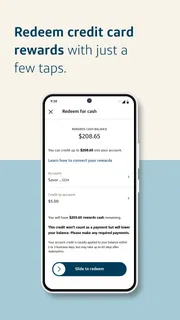
I recommend Capital One Mobile to people who already bank with Capital One and want practical account tasks within reach. Bill payment, card locking, and check deposit address real needs, while quick activity checks can make routine monitoring easier. The app is free, but its usefulness depends on the accounts and habits you bring to it—not simply on its popularity.
I would skip it as a primary finance app if you do not use Capital One, or if your main requirement is a consolidated view of accounts held at many institutions. In those cases, a different bank’s app or a broader financial-management tool may match your priorities better. For an existing customer who values quick, direct banking actions, though, this is a sensible app to keep installed and use for the jobs it handles best.
Pros
- Fingerprint and face recognition make signing in convenient.
- Card locking helps limit unauthorized purchases if a card goes missing.
- Customizable alerts can help you track account activity.
- CreditWise offers free access to credit monitoring tools.
- The app supports mobile check deposits for eligible accounts.
Cons
- Some features require a Capital One account or card.
- Mobile deposits may have eligibility limits and processing delays.
- The app may require a stable internet connection for key tasks.
- Some account services may still require contacting customer support.
- Available features can vary by account type and location.


