




Our review
 Analysis by Lookingapps
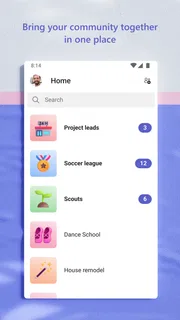
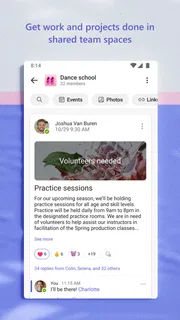
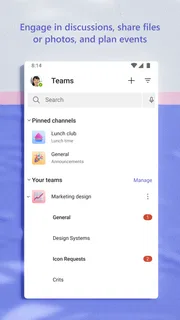
I think of Microsoft Teams less as a chat app and more as a shared workbench: useful when conversations, meetings, and project coordination need to sit together, but not automatically the simplest choice for every group. Its main appeal is continuity. A quick question can become a longer discussion, and a meeting can sit alongside the work that prompted it. That can save time when a team already relies on Microsoft’s work tools; it can feel like extra overhead when all you need is a lightweight messenger.
What the pace feels like in everyday work
Teams is a business app from Microsoft Corporation, and its design reflects the demands of people moving between messages, meetings, and collaboration rather than using a phone for one isolated task. In ordinary use, the perceived speed depends as much on what you are doing and the state of your connection as on the app itself. Opening a conversation is a different kind of task from joining a video meeting or catching up on a busy team’s discussion.
I find the app most useful when I treat it as a place to resume work, not as a feed I need to monitor constantly. If I open it to answer a specific question, check a conversation, or join a scheduled discussion, it has a clear purpose. If I leave every conversation open and expect to keep up with every notification, the volume of activity can make the experience feel slower even when the app is responding normally. The practical lesson is to decide which chats need your attention and mute or leave the rest alone where appropriate.
For a quick exchange, a familiar messaging app may feel more immediate simply because it has fewer work-oriented layers. Teams earns its place when a message belongs to a project or a group that also uses meetings and shared collaboration. That context is valuable, but it is not free: there is more to navigate than in a basic one-to-one messenger, and newcomers may need time to understand where a conversation belongs.
The app is free to download, while in-app purchases range from $9.99 to $129.99 per item. I would not assume that installing it alone gives a person access to every work feature or resource; the experience depends on the work environment and account they use. If you are joining a company or class, ask which account and team you should use before creating a separate personal setup. That small check can prevent the common frustration of landing in the wrong place and wondering why colleagues or conversations are missing.
When activity piles up
The real test is not a quiet chat but a day when several things happen at once: a team conversation is active, a meeting is about to begin, and someone sends a question that needs a considered answer. Teams can make that mix easier to manage because the work-related exchanges are gathered in one app. It can also make the phone feel busy. Notifications compete for attention, and bouncing between a meeting and message threads is mentally tiring even when each action is straightforward.
One useful habit is to write a short, specific message rather than sending several fragments in quick succession. In a busy group, a clear question with its context is easier for others to act on and easier for you to find later. I also try to move decisions out of a rapidly scrolling exchange into a concise summary. This is not a magic fix for a crowded conversation, but it reduces the chance that an important answer gets buried beneath routine updates.
More articles

Instagram Makes Everyday Moments Worth Sharing
A rare social app that can be a photo diary, a neighborhood window, and a lively conversation in the same session—though its best moments still require a little restraint.
For a realistic example, imagine a project lead who needs to confirm a meeting time, ask a colleague to review a draft, and tell the wider group that a task has changed. Teams suits that pattern better than splitting every exchange across separate chat and meeting apps. The trade-off is that a short update can become hard to track if the team has too many overlapping conversations. Naming the purpose of a message and keeping one thread focused on one topic makes the shared workspace more usable.
Video meetings are another heavy-use moment. A phone can be convenient for joining while away from a desk, but it is not always the best place to take notes, inspect detailed material, and follow a fast-moving discussion at the same time. I would use mobile Teams for attendance and quick participation, then switch to a larger screen if the meeting involves detailed review or substantial follow-up. The app is a useful bridge, not a guarantee that a small display will suit every meeting.
Reliability is more than staying open
With a work communication tool, reliability means being able to find the right conversation and understand what needs attention, not just keeping the app running. Teams is strongest when a group uses it consistently and gives its conversations a sensible structure. If one colleague sends an update in a group chat, another uses a different channel, and a third relies on a separate service, the app cannot solve the underlying coordination problem. The team’s habits matter as much as the software.
I would also distinguish a temporary interruption from a genuine loss of work. If a message or meeting action seems delayed, I check whether the connection is steady and whether I am in the expected account or conversation before repeating the action. Sending the same message several times can create more confusion than waiting a moment and checking the thread. For an important decision, a clear follow-up summary is more dependable than assuming everyone noticed a passing comment during a call.
Teams has a substantial audience: it carries a 4.6 average rating from around 8.8 million ratings and has more than 500 million installs. Those figures suggest that it is a familiar option for many users, but they do not promise an identical experience on every phone or in every organization. The people you need to reach, the account you are expected to use, and the way your workplace organizes its work will matter more to your day-to-day experience than popularity alone.
The current version is 1416/1.0.0.2026183002, and the app first appeared on November 2, 2016. I would keep it updated through the app store, especially if a meeting or work discussion is important, but I would avoid treating any version number as a guarantee of perfect performance. Like other communication apps, its usefulness relies on a combination of the phone, network, account, and the people on the other end.
Phone limits and who should choose something else
Teams is rated Everyone, but that age label does not mean it is aimed at every kind of user. Its core purpose is professional and collaborative communication. A student working with a project group, a small team coordinating tasks, or an employee who already uses Microsoft tools may find it worthwhile. Someone who only wants a casual family group chat may find a simpler messaging app easier to set up and less demanding to check.
On a phone with limited space, a large number of installed apps, or a tendency to switch quickly between tasks, I would be selective about keeping work notifications enabled. I cannot promise a particular battery or memory impact across devices; those demands vary with the phone and how heavily the app is used. The sensible test is to try the meetings and conversations you actually need, then adjust notification settings and remove unnecessary sources of interruption. If the device struggles during video, joining from a computer or using audio-only participation when suitable may be more comfortable than forcing the phone to do everything.
There is also a human-device constraint: a small screen makes it easy to miss context when several conversations are active. Before replying to a request, I check which group or chat I am in and whether the message is intended for the whole team. That brief pause is especially helpful when moving between work and personal accounts. It is a small workflow adjustment, but it prevents a surprisingly common kind of mobile mistake: answering quickly in the wrong context.
Compared with standalone video-conferencing tools, Teams is more attractive when the meeting is one part of an ongoing work relationship rather than the whole job. Compared with basic chat apps, it offers a more work-centered setting but asks users to accept more structure. If your organization already uses another platform consistently, switching just because Teams is available may fragment communication rather than improve it. I would choose the tool your colleagues actually check, not the one with the longest feature list.
A practical way to make it feel lighter
My best advice is to begin with the work you need to do, not with an attempt to explore every area of the app. Join the right team or conversation, learn how your group separates topics, and decide which notifications deserve an interruption. Keep urgent requests distinct from general updates, and use a brief recap when a meeting produces a decision that people need to act on. Those habits make Teams easier to scan and reduce the pressure to keep the app open all day.
If you are evaluating it for a group, try one real workflow before asking everyone to move everything. For example, use it for a recurring project discussion and its follow-up messages, then see whether people can find decisions without asking for them again. This reveals more than a quick tour: you learn whether the group benefits from keeping chat and meetings together or whether the extra organization gets in the way. A tool is only as useful as the routine people are willing to maintain.
My performance verdict
I recommend Microsoft Teams when work already revolves around shared conversations and meetings, particularly if your colleagues are using it too. Its strength is having those activities close together; its weakness is that a busy, loosely organized team can make the app feel noisy and harder to navigate. For focused mobile use—checking a thread, answering a question, or joining a meeting—it is a practical option. For long, complex sessions or a group that only needs casual chat, a computer or a simpler alternative may be a better fit.
In short, I would not judge Teams solely by whether it feels instant in every moment. The more useful question is whether it helps you return to the right work without scattering discussions across several tools. Keep the setup focused, follow your team’s conventions, and use a larger device when the task demands it. Under those conditions, it can be a reliable everyday workspace; without them, its breadth can feel like friction rather than help.
Pros
- Combines chat and video calls in one workspace.
- Supports screen sharing during meetings.
- Offers live captions to improve meeting accessibility.
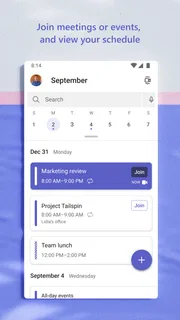
- Lets users schedule meetings from shared calendars.
- Works across Android iOS and desktop devices.
Cons
- Some features require a Microsoft 365 work or school account.
- Notifications can become overwhelming in busy workspaces.
- Large meetings may use significant mobile data.
- Finding older messages can be difficult in crowded chats.
- Background audio may affect call quality on mobile networks.


