
Our review
 Analysis by Lookingapps
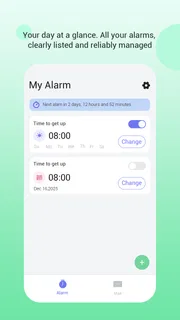
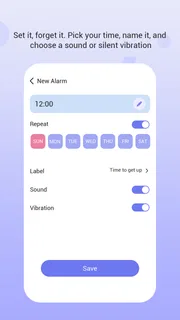
I judge an alarm clock by what happens at the inconvenient moment: when I’m half asleep, running late, or relying on it for something I can’t miss. WakeBox is a productivity app built around that basic job, with full-screen alerts and optional email access. That combination gives it a more focused feel than an all-purpose clock app, but it also makes the details of setup and connectivity worth thinking through before you depend on it.
WakeBox is free to use and comes from BLYTHEWOOD NY LLC. It has an average rating of 4.1 from around 2.6 thousand ratings, with over 1 million installs. Those figures suggest plenty of people have tried it, though they don’t tell me whether its alert behavior suits every phone or sleeping setup. I’d treat it as a practical alarm option to test on an ordinary morning before trusting it for a flight, exam, or early shift.
Where connectivity matters to the alarm routine
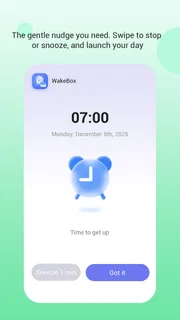
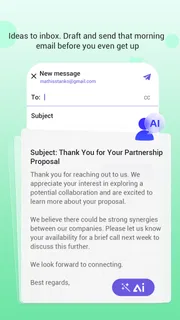
The central appeal is straightforward: an alarm should be hard to overlook. WakeBox’s full-screen alert is a meaningful distinction from a small notification that can blend into a crowded lock screen. If you tend to dismiss or miss quiet-looking alerts, that presentation may make the wake-up moment more noticeable. The app’s store summary also mentions optional email access, so there is a connected element beyond the alarm itself.
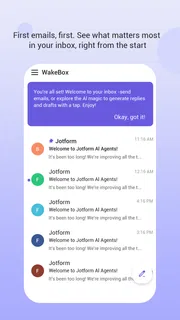
That does not mean I would assume email access is necessary for the core alarm routine. The word “optional” matters: users who prefer to keep an alarm app separate from email can approach setup with that boundary in mind. If you do enable email access, think about whether the convenience is worth connecting that account to an app whose main purpose is waking you. I’d grant access only if I understood the benefit and expected to use it.
Connectivity becomes most relevant when you are configuring the app or choosing whether to use its email-related option. For the alarm itself, I would avoid making assumptions about what happens when a phone has no signal or loses internet access. A sensible test is to set a low-stakes alarm, then check the behavior under the conditions you expect to face—such as a weak-signal bedroom or a phone in airplane mode—before relying on it. That is a practical precaution, not a claim that WakeBox works offline.
There is also a useful distinction between an app that sends an alert and the phone’s own ability to deliver it. Battery settings, notification controls, sound levels, and do-not-disturb behavior can affect alarm experiences across mobile apps. A full-screen presentation can help an alert stand out, but it is not a substitute for checking the phone’s settings. I’d make sure the alert is audible and visible with the screen locked, rather than judging the setup only while the app is open.
Use it where your phone’s habits are predictable
WakeBox is easiest to assess in a familiar place: at home, with the phone plugged in or at a known battery level, and with the same sound and notification setup you’ll use overnight. That gives you a baseline. Once you know how it behaves on your device, you can decide whether it belongs in a more demanding routine, such as travel or rotating work hours.
More articles

Instagram Makes Everyday Moments Worth Sharing
A rare social app that can be a photo diary, a neighborhood window, and a lively conversation in the same session—though its best moments still require a little restraint.
Consider a realistic weekday: I set an early alarm before bed, put my phone on a nightstand, and want the wake-up prompt to occupy the screen rather than disappear among other notifications. In that situation, the full-screen alert is the feature I’d evaluate first. I’d also check that the phone is positioned where I can hear it, not buried under bedding or left across the room with its volume low. The app can present an alert; it cannot fix a poor phone placement or a muted device.
For travel, the trade-off changes. A hotel room may have unfamiliar network conditions, different charging habits, and a schedule I can’t afford to miss. I’d set a test alarm after arriving and verify the phone’s sound and alert settings before going to sleep. If the trip is especially important, a second alarm method—such as a separate clock or another device—may be wiser than relying on any single phone app. That is not a knock on WakeBox; it is sensible redundancy when a late wake-up has a real cost.
For someone with a changing shift pattern, a dedicated alarm app can be more appealing than a general clock buried among other tools, but the setup still needs to be easy to inspect. Before turning in, I’d confirm the next alarm rather than trusting my memory of what I changed the night before. That small habit is especially useful when moving between early and late starts, because the most common failure may be a wrong schedule rather than a connectivity problem.
What to check when an alert doesn’t behave as expected
If an alarm seems to have failed, I’d troubleshoot from the phone outward instead of immediately blaming the app. First, check that the intended alarm is set for the right time and that the phone’s volume and notification controls allow an audible alert. Then look at battery restrictions or any settings that limit background activity. These are common places where an alarm workflow can be undermined, and checking them is more useful than repeatedly changing the alarm time.
Next, test the app with the screen locked and the phone in the position you normally use overnight. A full-screen alert is meant to be prominent, but the practical result depends on how it appears on your particular device. If the alert is visible but too quiet, investigate sound settings; if it does not appear as expected, review notification permissions and system restrictions. I would make one change at a time and repeat a short test, so it is clear which setting helped.
Connectivity is another variable to isolate rather than guess about. If you suspect a network issue, compare a routine test under your normal connection with one under a deliberately changed connection, while keeping the alarm time and phone settings the same. Pay particular attention to any email-related setup, since that is the part of WakeBox’s description that explicitly involves an optional connected service. Don’t confuse trouble with an email-linked function with proof that the alarm itself depends on email.
After adjusting anything, create a fresh test alarm instead of assuming a previous configuration has recovered. Check the screen presentation, the sound, and whether the phone remains in the state you intend to use overnight. If you depend on a wake-up for work, a timed test during the day is a low-cost way to catch a configuration problem before it matters. This routine is more reassuring than relying on an app’s install count or average rating to predict how it will work on your phone.
Keep email access and mobile data deliberate
Some people want every productivity tool connected; others prefer to minimize account access and background activity. WakeBox’s optional email access makes that choice part of the decision. If you have no clear reason to connect email, I’d leave that option alone and focus on the alarm experience. If you do use it, consider which account you choose and whether you’re comfortable with the app having that access. The right choice depends on your own habits, not on a need to enable every available option.
For data-conscious users, a useful approach is to separate setup from routine use. Configure the alarm and test the alert while you have a reliable connection, then observe what the app does in the environments where you expect to use it. This lets you make an informed choice without assuming that mobile data is required—or that it is never needed. The same careful approach applies to battery use: watch how the app fits into your normal overnight routine rather than drawing conclusions from a brief setup session.
WakeBox is rated for Mature 17+, so I’d take that age classification into account if choosing an app for a younger user or a shared family device. Its current version is 1.2.6, and it requires Android 7.0 or later. That makes compatibility a practical first check: an older phone may not meet the minimum, while a supported device still needs a quick real-world test to confirm the alarm presentation and system settings work as expected.
How it compares with built-in clocks and broader tools
The usual alternative is the clock app already on the phone. That option is hard to beat if you only need a basic alarm and want to avoid installing another app or considering email access. WakeBox makes more sense if its full-screen alert is the specific behavior you’re looking for, or if you want an alarm-focused experience that you can evaluate separately from the phone’s standard clock.
Compared with broader productivity apps, WakeBox has a narrower job. That can be a strength when you want a dedicated wake-up routine rather than calendars, task lists, and reminders all competing for attention. It can also be a limitation: if your main need is scheduling around events or coordinating alarms with a larger daily plan, a built-in clock or a more comprehensive organizer may fit better. I would choose based on the task I actually need solved, not on the assumption that a dedicated app is automatically more capable.
It has a 4.1 average and around 580 written reviews, which offer a rough sense of how other users have responded, but ratings can’t settle the most important question for me: does the alert work reliably on my device, in my room, with my settings? I’d use the app store’s current information to confirm the version and compatibility before installing, then spend a day testing rather than making it my only alarm on the first night.
My connectivity verdict
WakeBox is most appealing when a prominent, full-screen wake-up alert is more important to you than an all-in-one productivity suite. I like that email access is presented as optional, because it lets users think deliberately about account connection instead of treating it as part of the basic alarm. The trade-off is that you should verify how the app behaves on your own phone, especially around sound, notifications, battery controls, and any connected email use.
I’d recommend trying it if you want a focused alarm and are willing to run a low-stakes test before trusting it with an important morning. I’d skip it if your built-in clock already wakes you reliably, if you do not want to install another app, or if you need a wake-up system whose behavior you can verify without any uncertainty around connectivity. For travel or other high-stakes mornings, I’d pair it with a backup. That balance makes WakeBox worth considering, but not something I’d treat as a substitute for checking the phone it runs on.
Pros
- Easy to set up alarms with custom wake-up times.
- A straightforward interface makes everyday use simple.
- Multiple alarms help manage different schedules.
- WakeBox can make morning routines more consistent.
- Useful for people who need a dedicated alarm app.
Cons
- Some features may require an in-app purchase.
- Alarm reliability depends on device settings and permissions.
- Limited customization may not suit every user.
- Notifications can be affected by battery-saving settings.
- The app may not offer enough tools for heavy sleepers.


