
Our review
 Analysis by Lookingapps
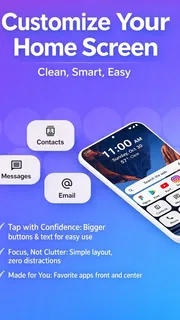
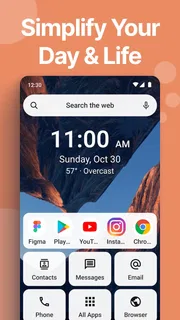
I judge a home-screen app by what happens in the small moments: checking something quickly while carrying groceries, handing a phone to someone else, or trying to keep the screen useful rather than crowded. Super HomeScreen is a personalization app from lighten apps that takes an information-first approach. Its appeal is less about turning a phone into a visual showcase and more about making everyday essentials easier to reach.
Useful when a phone gets passed around
On a shared household phone, or on a personal phone that family members occasionally borrow, the home screen becomes a practical meeting point. Someone may need to open a familiar app, glance at what is on the screen, and hand the device back without digging through folders. Super HomeScreen is worth considering if you want that first screen to feel more purposeful and less like a shelf of icons you rarely use.
I would not treat it as a household account system, though. A launcher changes how the device’s home screen is presented; it does not, by itself, establish separate identities or decide what another person can access. If several people use one device, the important boundary remains the phone’s own accounts and security settings. That distinction matters: a more organized screen can make borrowing smoother, but it should not be mistaken for privacy or parental controls.
The app’s central idea suits people who want information and commonly used actions close at hand. The store summary describes an efficient launcher focused on speed and information, and that is a more helpful way to think about it than as a theme pack. If your main goal is to make a home screen feel calmer and more functional, the emphasis is promising. If you mainly want elaborate icon art, animated effects, or a dramatic visual makeover, a design-led launcher may be a better match.
Start with the screen everyone actually uses
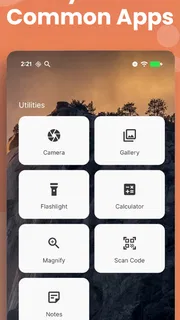
When setting up a launcher for a household device, I would begin with the person who uses it most often and the tasks other people commonly need. Keep the first screen limited to genuinely shared destinations, such as communication, photos, or everyday utilities, rather than trying to anticipate every possible need. A clear front page is easier to understand when someone borrows the phone for a minute.
There is a useful trade-off here. Putting too many items in easy reach may make the screen feel busy again; hiding too much can make a new user hesitate. I would aim for a small, recognizable set of essentials and leave personal or sensitive apps out of the shared routine. That is a layout choice, not a protection mechanism, so use the device’s normal lock and account options for anything private.
For a phone that belongs to one person but is occasionally used by a partner or child, a predictable arrangement can reduce the “where did that go?” problem. I find that consistency matters more than cleverness in this situation. A familiar first screen is especially helpful for someone who only borrows the phone now and then and does not want to learn a new filing system.
More articles

Instagram Makes Everyday Moments Worth Sharing
A rare social app that can be a photo diary, a neighborhood window, and a lively conversation in the same session—though its best moments still require a little restraint.
Coordination without pretending the launcher is a family dashboard
A practical way to use Super HomeScreen is to agree on what belongs on the shared-facing screen. One person can keep frequently needed household apps in a stable, visible place, while each regular user keeps their personal habits and accounts separate where the phone supports that. The launcher can help make the starting point easier to navigate; it should not be expected to synchronize people’s plans or manage their permissions.
Consider a realistic morning: one person is checking the day’s essentials while another borrows the phone to make a quick call or open a familiar app. A tidy, information-oriented home screen can reduce the time spent searching. The benefit is modest but real: fewer taps and less uncertainty at the point where people start using the device. It does not replace a shared calendar, a messaging group, or a clear agreement about whose account is open.
One non-obvious trade-off with any information-focused launcher is that a screen designed to surface more at a glance can also expose more to whoever is nearby. On a shared table or in a busy kitchen, think carefully about what you want visible before making the home screen the household’s central noticeboard. Keep sensitive matters inside the relevant app and use the phone’s privacy controls rather than relying on a different layout to conceal them.
I would also avoid changing the layout every few days if other people depend on it. A launcher can be personalized, but frequent rearrangement makes a shared device less predictable. Try a stable arrangement first, then adjust only when a genuine snag appears: an important app is hard to find, or the first screen is carrying items nobody uses. This gradual approach makes it easier to tell whether the change actually helps.
What changes, and what stays in your control
Super HomeScreen is a launcher, so its role is to shape the home-screen experience rather than replace the phone’s underlying system. That distinction is useful if you are deciding whether to try it. You are considering a different way to reach and view what matters, not a new household account structure. Keep your expectations at that level, and the app’s purpose is easier to assess.
For someone who wants an uncluttered starting point, I would compare it with the standard launcher already on the phone before committing to a new routine. The default option may be enough if you only need a few icons arranged differently. Super HomeScreen makes more sense when you specifically want a launcher whose identity is tied to speed and information, rather than simply changing wallpaper or icon appearance.
That comparison also offers a low-friction test: try the new home-screen approach with familiar apps and ordinary daily tasks. Pay attention to whether you can reach essentials without pausing, and whether another household member can understand the screen without a tutorial. If the layout creates extra questions, the standard launcher may be the more sensible choice. The best setup is the one people can use naturally, not the one with the most customization.
There is another practical consideration for shared use: a household often contains different levels of comfort with phone changes. Someone who enjoys reorganizing a screen may appreciate a launcher, while a less confident user may prefer a layout that never moves. Before making it the default on a device used by others, involve the regular users in deciding what should stay visible and where familiar apps belong. That small conversation can prevent the new layout from feeling like someone else’s phone.
Age, trust, and sensible expectations
The app is rated Everyone, which makes its age classification broad, but that label should not be read as a guarantee about how a particular family should configure a phone. A child’s access still depends on the device, the apps installed, the accounts signed in, and the rules the adults set. Super HomeScreen may provide a more approachable entry screen, but I would not use it as a substitute for supervision or system-level restrictions.
This is especially important when a child borrows an adult’s device. A simplified home screen can make basic navigation easier, yet it does not necessarily separate the child’s activity from the owner’s. If account boundaries matter, check the phone’s own user, profile, and lock options first. The launcher is most useful after those decisions have been made, as a way to make the visible starting point clearer.
Trust is also about predictability. If a parent or another household member changes the home screen, explain where the familiar items went rather than expecting everyone to discover the new arrangement. For an older relative or an occasional user, preserving recognizable names and a stable order may be more valuable than making the layout look perfectly minimal. I would favor clarity over novelty in any home where people share one device.
Who should try it—and who should keep looking
I would recommend trying Super HomeScreen if your main frustration is that the phone’s first screen does not help you get to useful information and everyday apps quickly. It is a particularly reasonable fit for someone willing to rethink the home screen around practical access, and for a household that wants a more consistent starting point on a device people sometimes borrow.
I would skip it if your priority is a rich collection of visual themes, or if you expect a launcher to manage family members, protect accounts, or coordinate household schedules. Those are different jobs. Likewise, if everyone already finds the standard home screen easy to use, installing another launcher may add a change without solving a real problem. A useful test is to name the exact moment you want to improve before switching.
Super HomeScreen is free, and its audience is substantial: it has over one million installs, with a 4.0 average from around 5,600 ratings. Those figures suggest that it has found users, but they are not a substitute for checking whether its approach suits your own phone. The app was released on August 28, 2025, and version 3.2.7 is the current version. It requires Android 8.0 or later, so it is not an option for devices running an older system.
For a first try, I would keep the experiment simple: make the launcher the starting point, arrange only the essentials, and use the phone normally for a few days. Notice whether you reach common tasks more directly and whether other people can navigate without asking where things moved. If the answer is yes, keep refining the screen slowly. If not, returning to the familiar launcher is a perfectly reasonable decision.
A household-minded verdict
Super HomeScreen’s strongest case is practical rather than decorative. It offers a way to make the phone’s first screen feel more focused on what you need to see and reach, which can help when a device is used in quick, shared moments. Its limits are equally important: a launcher can improve navigation, but it cannot create account separation, enforce family rules, or guarantee privacy on a borrowed phone.
My recommendation is to try it when the home screen itself is the problem, not when the household needs a broader management tool. Keep personal boundaries in the operating system, agree on a stable shared-facing layout, and judge the app by whether it makes everyday use simpler for the people who actually touch the device. Used with those expectations, it is a sensible personalization option; if you need deep visual customization or genuine multi-user controls, another solution will serve you better.
Pros
- Quick access to favorite apps from the home screen
- Customizable layouts help make the screen feel personal
- Useful shortcuts can reduce time spent navigating menus
- A practical option for refreshing an older device
- Home screen changes are easy to adjust or undo
Cons
- Some features may require extra permissions
- Advanced customization can take time to set up
- Compatibility may vary across Android versions
- A busy layout can make apps harder to find
- Some options may depend on the device launcher


