
Our review
 Analysis by Lookingapps
I can see the appeal of an AI art app most clearly when creativity happens in the middle of ordinary life: someone has an idea for a birthday invitation, a child wants to explore a visual concept, or two people are trying to settle on a look for a shared project. Google Flow is positioned for that kind of experimentation, but I would approach it as a personal creative workspace rather than a ready-made household collaboration system. Its value depends on how comfortably each person can use it, and on being clear about whose account and creative choices are involved.
Making room for a shared creative idea
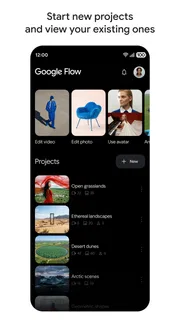
Google Flow is an AI art and design app from Google Labs. I think of it as a place to explore visual directions, not as a replacement for a conventional drawing program or a full design suite. That distinction matters in a shared setting: it can help people turn a loose idea into something to discuss, while hands-on editing and careful finishing may still suit a traditional tool better.
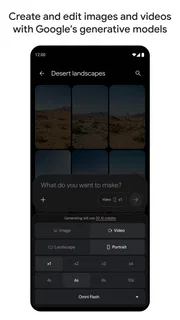
Imagine a household planning a handmade invitation. One person has a theme in mind, another has a different color palette, and neither wants to spend the evening learning a complicated design program. An AI-oriented creative studio can be useful at the brainstorming stage: try describing the mood, compare possible directions, and use the results as prompts for a conversation. The practical win is not necessarily a finished invitation; it is having something visual to react to instead of trying to explain an image that exists only in someone’s head.
That makes the app most interesting when the task is open-ended. A student exploring a project concept, a hobbyist looking for inspiration, or a family member making a playful visual for personal use may get more from it than someone who already knows exactly how every detail must look. I would keep expectations grounded: AI-generated creative work can be a starting point, and a person’s judgment still matters when deciding whether an image actually fits the intended use.
In the app store, Google Flow has a 3.8 average from around 35,000 ratings, with more than 10 million installs. Those figures suggest broad interest alongside a mixed reception, which feels reasonable for a tool whose usefulness depends so much on the user’s goals and tolerance for experimentation. I would not treat popularity as proof that it will suit everyone in a home.
One device does not mean one creative identity
When an app is used on a device passed between people, the most helpful habit is to agree on who is using it before starting. I would avoid assuming that a shared tablet automatically creates separate creative spaces or that one person’s work will be clearly separated from another’s. The account currently in use is an important boundary in any app, especially when personal projects and household experiments sit side by side.
For a low-friction session, decide whose account is active, what the project is for, and who will make the final choice about anything created. That small pause can prevent the familiar shared-device confusion of one person changing settings or continuing a task that another thought was finished. It also helps when a device is used for both schoolwork and casual play: keeping the purpose of a session explicit makes it easier to judge what belongs in the app and what should be handled elsewhere.
More articles

Instagram Makes Everyday Moments Worth Sharing
A rare social app that can be a photo diary, a neighborhood window, and a lively conversation in the same session—though its best moments still require a little restraint.
I would also avoid treating an AI studio as a private family scrapbook by default. If several people contribute ideas, agree on whether a result is just for the moment or something one person wants to keep working on. That is a useful distinction even without assuming any particular sharing or storage feature: the household can decide its own routine instead of relying on the app to infer who owns an idea.
Coordinating ideas without expecting a group workspace
For shared projects, I find it useful to separate the creative conversation from the actual editing. One person can describe a direction, another can say what feels right or wrong, and the person responsible for the final piece can decide what to carry forward. This keeps a casual group session from becoming a tug-of-war over every detail, and it works whether the app is being used for a school poster idea, a party theme, or a personal art experiment.
A practical tip is to give each round a narrow goal. Instead of asking everyone to invent the whole project at once, agree first on the mood, then on the subject, then on what needs to be changed. Narrow prompts make discussion more concrete: “less formal” or “more playful” gives the group something useful to assess, whereas vague requests can lead to repeated attempts without a clear reason for choosing one result over another.
Another useful trade-off is to treat generated images as discussion material rather than final authority. A result can suggest a composition or atmosphere, but people should still check whether it is appropriate for the audience and whether it communicates the intended message. If the project needs exact text placement, dependable brand consistency, or precise control over every visual element, I would move the finishing work to a conventional design editor. That is not a knock on an AI-focused app; it is a sensible division of labor.
Compared with ordinary drawing and design apps, Google Flow’s appeal is the possibility of starting from an idea and exploring visual possibilities, rather than beginning with a blank canvas and placing every element manually. The trade-off is control. Traditional tools are often the better choice when the task demands predictable layout, detailed retouching, or repeatable results. I would use Flow to explore and a more hands-on editor to refine when precision matters.
Age, guidance, and realistic expectations
The app has a Teen content rating, so I would not interpret its creative focus as a reason to hand it to a younger child without thought. In a household, age-appropriate use is still a conversation between the adult and the young person. I would set expectations about what is suitable to create, explain that AI results may not always match the prompt, and encourage a child to ask for help if an output feels confusing or inappropriate.
For teens, the most useful guidance is about judgment rather than simply pressing buttons. They can learn to question whether an image is misleading, whether it suits the assignment, and whether they should present an AI-assisted result as their own hand-drawn work. If the goal is to build drawing technique, a sketching app that keeps the young artist making the marks may be a better fit. If the goal is concept exploration, an AI creative tool can have a place alongside that practice.
I would also be careful about using generated visuals in situations where accuracy carries real consequences. A school presentation, a personal mood board, or a casual invitation can tolerate experimentation differently from an informational graphic that must depict something faithfully. Checking the result before sharing it is a simple but important step, particularly when other people might assume an image is a literal record rather than an artistic interpretation.
Google Flow is free, which lowers the barrier to trying it, but free does not automatically mean frictionless or suitable for every purpose. It is a Teen-rated app, and that age context should be part of a parent’s decision. The current version is 1.591.0, and the minimum operating-system requirement is 7.0. I would check that a device meets the requirement before planning a shared activity, then give the app a short trial with a small, low-stakes idea rather than making it central to an important project immediately.
Where I would draw the line
I would skip this app if I wanted a traditional drawing experience built around direct brush control, or if I needed a professional production workflow with exact, repeatable layout. I would also look elsewhere when a project depends on collaboration features that everyone in a group expects to use together; I would not choose an app on the assumption that it provides a shared workspace unless that capability has been clearly established in the app itself.
For a household, the other possible friction is simply different expectations. One person may want quick inspiration, another may expect precise control, and a younger user may need more guidance than an adult hobbyist. Agreeing on the task before opening the app helps reveal whether it is the right tool. If the group is mainly trying to make a clean flyer with exact wording, a standard layout editor may save time. If the goal is to discover a visual direction together, Flow is the more natural place to experiment.
Google Labs is the developer, and the app sits in the art-and-design space rather than presenting itself as a general-purpose household organizer. That is why I would keep its role modest: use it for creative exploration, make account boundaries clear on shared devices, and move important finishing work to a tool that gives the level of control the project needs. This approach makes the app easier to evaluate without expecting it to solve unrelated family or workflow problems.
My household verdict
I would recommend Google Flow to a household that enjoys trying visual ideas and is comfortable treating AI output as material to review, not a finished answer. Its strongest shared-use scenario is a short, low-pressure brainstorming session where people can compare directions and agree on what they like. It is less compelling when several users need clearly separate workspaces, when precise manual editing is the main task, or when the project cannot tolerate visual uncertainty.
My practical advice is to start with one simple project, keep the active account and intended user clear, and decide in advance whether the result is only inspiration or something that needs careful finishing. That gives each person a fair chance to judge the app on its real strength: helping turn an idea into a visual conversation. For the right household, that is a useful creative role; for everyone else, a conventional drawing or design app may be the more dependable everyday choice.
Pros
- Combines video generation with image and audio creation tools.
- Ingredients help keep characters and visual elements consistent.
- Frame-based controls make it easier to guide a scene.
- Generated clips can be extended into longer sequences.
- Google account integration simplifies access to the service.
Cons
- Access may be limited by region or subscription plan.
- Generation can take time when demand is high.
- Results may vary even with similar prompts.
- Generated videos may contain visual or motion artifacts.
- Export and usage limits can depend on the selected plan.


