




Our review
 Analysis by Lookingapps
I approach a browser differently from a game or a photo editor: before I rely on it, I want to know what it helps me do and where I should pause before sharing something sensitive. Ge Browser - Safe & Smart presents itself as a private browser with video downloading, so its appeal is easy to understand: browsing and saving media in one tool. My view is more measured. That combination can be convenient, but the word “private” is not, by itself, proof of a particular privacy standard. I would treat the app as a practical option to try, not as a guarantee of anonymity.
What the browser is trying to solve
Ge Browser is a free Android tools app from Av sign international. Its short store description calls it “Ge Browser,” while its fuller positioning emphasizes private browsing and video downloads. That points to a specific kind of user: someone who wants a straightforward browser for everyday web pages and a way to keep certain videos for later, without installing separate apps for every task.
The app has an average rating of 4.8 from around 5.8 thousand ratings, with roughly 106 written reviews and over 500 thousand installs. Those figures suggest that plenty of people have tried it and that its reception is positive, but they do not tell me how it handles browsing data or whether every download workflow will suit a particular site. I use popularity as context, not as a substitute for checking the choices the app actually presents.
The version is 1.3.1, and the stated minimum Android requirement is version 8.0. Its content rating is Teen. Those details make it relevant to a broad range of Android users, though a teen rating is not a privacy assessment and should not be read as one. If you are choosing a browser for a younger family member, I would still look at the device’s own supervision and content settings rather than expecting the browser label to do that job.
Convenience is not the same as a privacy guarantee
Combining browsing with downloading has a clear everyday advantage: you can encounter something useful while reading and consider saving it without switching to a dedicated downloader. But the two activities can involve different kinds of exposure. Visiting a page reveals browsing activity to the services involved in loading it; downloading adds a file to the device and may leave it available to anyone with access to that device. “Private” browsing does not automatically erase those separate traces.
I would therefore judge this app by the controls visible during use, rather than assuming a particular protection from its name. Before opening a personal account, entering payment details, or handling private documents, check what the browser lets you control and whether its explanations are clear. If you cannot tell what a setting changes, use a browser whose privacy controls you already understand for that task.
What I would check before trusting it
A useful first pass is to review the app’s permissions in Android settings and compare each request with what you are doing. A browser may need access for a feature to work in a particular situation, but I would not grant a broad permission merely because the app offers downloading. If a permission appears unrelated to the action on screen, deny it first and see whether the basic browsing task still works.
More articles

Instagram Makes Everyday Moments Worth Sharing
A rare social app that can be a photo diary, a neighborhood window, and a lively conversation in the same session—though its best moments still require a little restraint.
I also recommend looking for the app’s privacy information and any in-app explanation of data handling before making it your default. That is not busywork: browser traffic can include searches, visited pages, sign-ins, and files, so the distinction between what stays on the phone and what is processed elsewhere matters. I would not use the word “private” to fill in details that the app itself does not clearly explain.
Another practical check is to test the browser with low-stakes material before using it for sensitive browsing. Open a public page, inspect the available settings, and notice what options appear around the download flow. This gives you a chance to understand the interface without putting a work account, health search, or personal document into a tool you have not yet evaluated.
Downloads deserve a separate moment of care
For a realistic use case, imagine finding a public tutorial while commuting and wanting to watch it later when you have less reliable connectivity. A browser with a download function can make that workflow feel simpler than copying a page into another app and searching for the media again. I would still check the site’s rules and the creator’s permissions, and I would save only material I am entitled to keep. A download button is a convenience, not permission to reuse someone else’s work.
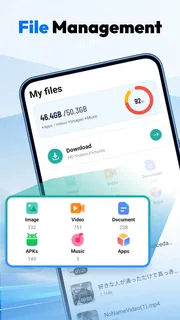
There is also a small but important device-side trade-off: a saved video takes storage and can become visible in places beyond the browser, depending on the phone’s file and media setup. If you use a shared device, think about where downloads are stored and who can open them. For a private clip or a file you would not want another user to stumble across, the safer choice may be not to download it at all.
When a video does not download, I would not assume the browser is broken. Sites can restrict saving, change how they deliver media, or require a different kind of access. Rather than repeatedly trying workarounds, I would use the site’s own offline option when available, or accept that some pages are intended for streaming only. That keeps the tool useful without turning every viewing problem into a security gamble.
Useful habits for browsing with more control
One practical habit is to separate casual browsing from high-stakes sessions. Use a browser you have evaluated for banking, work systems, or personal accounts, and avoid treating a second browser as a magical shield. A separate app can help keep activities mentally distinct, but it does not necessarily prevent services from recognizing an account you sign into or information you submit.
Another is to review downloads deliberately instead of letting them accumulate. After saving a video, decide whether it still needs to remain on the phone. Removing files you no longer need reduces clutter and avoids leaving old media in a shared device’s storage. This is a simple form of user control that matters even when the browser’s own privacy behavior is not the issue.
I would also avoid entering credentials on pages reached through unexpected pop-ups or download prompts. If a page suddenly asks for an account to “unlock” a file, stop and verify that you are still on the service you intended to use. A browser can make access convenient, but it cannot make a deceptive page trustworthy simply by displaying it.
Where it sits among familiar alternatives
Compared with a mainstream browser already built into an Android phone, Ge Browser’s clearest distinction is its combined emphasis on private browsing and video saving. A mainstream browser may be the better everyday choice if you depend on familiar account syncing, established settings, or a workflow you already know. I would not switch away from a trusted setup solely because another browser makes a privacy-oriented promise.
Compared with a dedicated video downloader, a browser-based approach may reduce app switching when the media is encountered during ordinary web use. The trade-off is that a specialized tool may make its download workflow more central, while a browser has to serve page navigation too. If downloading is your main purpose, compare the actual controls and storage behavior before deciding; if you only save a clip occasionally, keeping the workflow inside a browser may feel less cumbersome.
That is the decision I would make based on use, not slogans. For reading public pages and occasionally saving permitted media, this app’s combination is an understandable fit. For someone who needs deep privacy assurances, extensive account management, or a carefully documented security model, I would favor an option whose controls and data practices are explicit enough to evaluate before use.
Who may find it worthwhile
I can see Ge Browser suiting someone who wants a free, uncomplicated Android browser and values having a video-saving option nearby. It is especially plausible for casual browsing, reference clips, and public tutorials that a user wants to revisit without hunting through a page again. The positive average rating and substantial install base offer some reassurance that it has attracted users, but I would still form my own view by checking permissions and testing the actions I plan to use.
I would skip it as a primary browser if my first requirement were a clearly documented privacy model, if I relied heavily on synchronized browsing across devices, or if I needed dependable handling for sensitive work. I would also look elsewhere if my video use regularly involves services that restrict downloads. In those cases, a familiar browser or the content provider’s own viewing options may be a more dependable and appropriate choice.
A cautious, practical verdict
Ge Browser - Safe & Smart has a simple proposition: browse and save videos in the same Android app. I like the convenience of that idea, and its free availability makes it easy to consider for low-risk everyday use. Still, I would separate the app’s stated privacy positioning from what I can actually verify in its visible controls. The latter should guide how much trust I place in it.
My recommendation is to try it with ordinary browsing first, inspect permissions and privacy explanations, and use the download feature only for content you are allowed to save. Keep a browser you already trust for accounts and sensitive tasks until you are comfortable with this one’s choices. With that cautious approach, it may be a handy secondary browser; without clear controls that meet your needs, its convenience alone is not a reason to make it your default.
Pros
- Offers a built-in ad blocker for a less cluttered browsing experience.
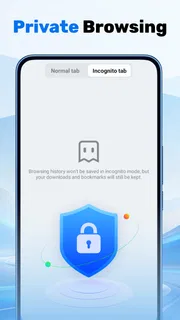
- Private browsing mode helps keep sessions separate from regular history.
- A lightweight design can make everyday browsing feel responsive.
- Customizable search options offer flexibility when looking up information.
- Simple navigation makes core browser features easy to find.
Cons
- Some websites may not work as expected when ads or trackers are blocked.
- The browser may lack advanced tools found in more established alternatives.
- Privacy features do not guarantee anonymity online.
- Users may need time to adjust to the browser's interface and settings.
- Performance can vary depending on the device and website.


