

Our review
 Analysis by Lookingapps
Changing the look of a phone’s home screen can make everyday tasks feel a little more personal, but it can also turn into a fiddly project if the tools are complicated. Easy Homescreen aims for a simpler approach, bringing together personalized fonts, shortcuts, and icons so you can tailor the screen you use most. I find that promise appealing: it focuses on visible, practical changes rather than asking you to rebuild the way you use your phone.
Personalization that stays close to everyday use
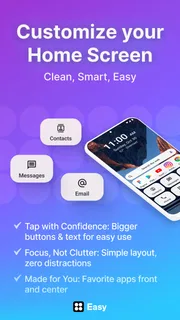
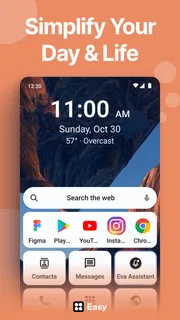
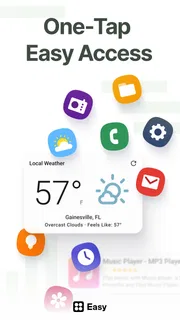
Easy Homescreen is a personalization app from Homescreen Apps. Its central idea is straightforward: make your home screen feel more like yours while keeping it easy to use. Fonts can change the visual tone, icons can give app shortcuts a more coordinated appearance, and shortcuts can help bring commonly used actions closer to hand. Those are familiar customization tools, but the emphasis on simplicity is what gives the app its identity.
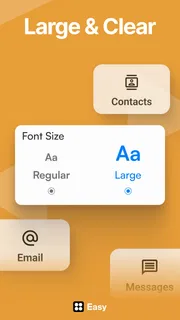
In my view, home-screen customization works best when it adds character without making routine navigation harder. A striking set of icons may look great in a screenshot, but the real test is whether I can still recognize what I need at a glance. The same goes for fonts: a distinctive style can make a screen feel more personal, while an overly decorative one may be less comfortable to read. Easy Homescreen’s mix of visual options and shortcuts speaks to both sides of that balance.
The app is free to download, with in-app purchases available. It has reached over ten million installs and holds a four-star average from around 305,000 ratings. That broad uptake suggests that the basic idea has found an audience, although the best fit still depends on how much control you want and how your device handles home-screen customization.
What changes feel useful?
Fonts and icons are the most immediately visible parts of a personalized home screen. They can make a device feel less generic, especially if you prefer a consistent style across the apps you use most. Shortcuts have a different kind of value: rather than changing appearance alone, they can make selected actions easier to reach. Together, these options give you room to adjust both the look and the everyday feel of your screen.
I’d approach customization in small steps. Start with a visual choice that improves clarity or suits your taste, then see whether adding shortcuts makes the layout more convenient. That way, the screen remains familiar while you decide what is genuinely helpful. A home screen is something you return to constantly, so a modest improvement you enjoy every day can matter more than a dramatic redesign that becomes tiring.
When connectivity enters the picture
Network access can shape the experience of many personalization apps, particularly when browsing or loading content is involved. With Easy Homescreen, it makes sense to pay attention to what is happening during setup and while exploring its options. If a screen takes longer to load or an item does not appear straight away, the connection may be part of the reason; a brief delay does not necessarily mean the customization itself has failed.
More articles

Instagram Makes Everyday Moments Worth Sharing
A rare social app that can be a photo diary, a neighborhood window, and a lively conversation in the same session—though its best moments still require a little restraint.
That distinction matters because changing a home screen often involves several steps. You might be comparing styles, selecting an icon, and then checking how the result looks in context. A steady connection can make any online-dependent portions of that process feel smoother, while a weak or interrupted signal can make the app seem less responsive. I’d avoid making several changes at once when the connection is unreliable, since it is easier to tell what worked when you proceed one choice at a time.
Just as important, I wouldn’t assume every part of the experience requires a network connection or that everything works without one. The sensible approach is to notice which screens respond promptly in your usual conditions and which appear to need more time. That keeps expectations grounded and helps you separate a temporary connection hiccup from a setting or layout issue.
Using it in different mobile situations
Phones are used in all kinds of places: at home on a reliable connection, while commuting, or in areas where reception fluctuates. Easy Homescreen is most comfortable to explore when you have enough time to look through the available choices and check how your screen appears afterward. If you are in a hurry, a quick, focused adjustment is likely to be less frustrating than trying to redesign everything between other tasks.
For a short session, I’d choose one goal: perhaps make the icons feel more consistent or adjust a font to improve the screen’s overall style. Then I’d return to the home screen and use it normally before making more changes. This practical rhythm is useful on any phone, but especially when you are moving between network conditions. It prevents a momentary pause from turning into a larger troubleshooting session.
Screen size and personal habits matter, too. A layout that looks balanced on one device may feel crowded on another, and shortcuts only help if they support the way you actually navigate. Rather than chasing a polished screenshot, I’d judge the result by ordinary use: can I find what I want quickly, and does the screen feel comfortable to look at? That is a more useful measure of a successful personalization app than novelty alone.
Handling a pause or an interrupted change
Any app can feel uncertain when a connection drops or a screen takes longer than expected. If an option appears to stall, I’d give it a moment before tapping repeatedly or starting the same action again. Repeated attempts can make it harder to tell whether the first one completed. Once the app responds, check the home screen to see what actually changed, then continue only if the result is clear.
If something looks different from what you expected, a calm, step-by-step check is more useful than changing several settings at once. Look at the selected font or icon choice, return to the screen you were customizing, and confirm whether the change is visible. If it is not, retry the relevant step when your connection is steadier. This approach is simple, but it makes recovery less confusing and reduces the chance of layering extra changes over an unresolved one.
I also recommend taking a moment to consider whether the issue is temporary. A slow response during a weak-signal moment does not automatically point to a lasting problem with the app. On the other hand, if a particular choice repeatedly fails to appear, it may be worth leaving that change for later and using the parts of the customization experience that are behaving as expected. The goal is a home screen that feels easier to use, not a long session spent wrestling with one option.
A thoughtful approach to data and attention
Personalization can invite a lot of browsing, but you do not need to explore every option to get value from it. If you are mindful of mobile data, use the app deliberately: focus on the changes you want, avoid leaving screens loading unnecessarily, and do more exploring when you have a connection that suits your needs. These are general habits rather than claims about how Easy Homescreen handles data, and they can help keep any mobile customization session predictable.
It is also worth considering the attention cost of customization. A new look is enjoyable, but frequent changes can make the home screen feel less familiar. I prefer to make a few considered choices, live with them for a while, and then decide whether something else would genuinely improve the experience. That keeps personalization practical and avoids turning a simple utility into a constant project.
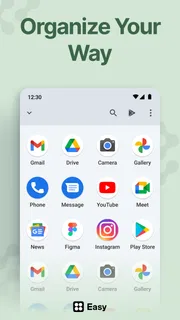
Before committing to a style, think about readability and recognition. If a font makes labels harder to scan or icons become difficult to distinguish, the design may be working against you. A clean, consistent arrangement is often more satisfying than adding visual detail everywhere. The strongest customization is the one that reflects your taste while still making your phone straightforward to use.
Who may enjoy Easy Homescreen?
Easy Homescreen is a natural option for people who want a more personal-looking phone without starting from scratch. Its combination of fonts, icons, and shortcuts covers both appearance and convenience, making it suitable for someone who wants a small refresh as well as someone willing to spend time refining a theme. The app is rated for Everyone, and its broad audience indicates that the concept is approachable to many users.
It may be less compelling if you are already satisfied with your current screen or prefer not to spend time adjusting its appearance. The value is in having choices, not in making changes for their own sake. I’d also keep the available in-app purchases in mind: the app is free, while individual purchases range from $0.99 to $29.99. That makes it sensible to explore what you can do before deciding whether any paid option is worthwhile for you.
The app’s release date is January 26, 2023, and its current version is 1.10.29. It supports devices running Android 9 or later. Those details are useful when checking compatibility, especially if you are setting up an older phone. As always, the actual feel of customization can depend on your device and how you prefer to organize its home screen.
My connectivity verdict
Easy Homescreen makes a clear case for approachable phone personalization: fonts, shortcuts, and icons give you straightforward ways to make a home screen feel more tailored. Connectivity is best treated as one part of the experience rather than the whole story. A strong connection can make browsing and setup feel smoother, while a weak one may call for patience and a more focused session. I would make changes gradually, check the result on the home screen, and avoid assuming that every delay means something has gone wrong.
Overall, I see it as a useful choice for anyone who wants to refresh their phone’s appearance while keeping convenience in view. Its appeal is not just that it offers customization, but that the available tools connect visual style with everyday access. If you enjoy making your device feel more personal and are happy to experiment at your own pace, Easy Homescreen is worth considering. The best result is a screen that looks like yours, remains easy to navigate, and does not demand more attention than the small improvements are worth.
Pros
- Simple controls make it easy to customize the home screen.
- A clean layout helps keep important shortcuts easy to find.
- Personalization options let users tailor the screen to their taste.
- A lightweight design can work well on older devices.
- Useful for users who prefer a less cluttered home screen.
Cons
- Some features may require time to set up.
- Customization choices may be limited compared with full launchers.
- Changes may not suit users who prefer a standard home screen.
- Compatibility can vary across Android versions and devices.
- It may offer little value to users already happy with their launcher.


