



Our review
 Analysis by Lookingapps
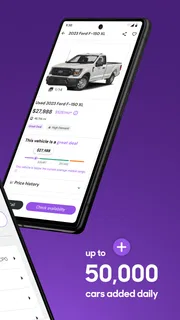
Shopping for a car can feel like opening ten browser tabs and trying to remember which one had the sensible mileage, the right trim, or the seller you meant to call. Cars.com gives that search a more focused home. It is a free Auto & Vehicles app from Cars.com, built around browsing vehicles, keeping track of listings, and selling a car. My main advice for a first-time user is to begin with a clear idea of what matters most—budget, body style, location, or a must-have feature—rather than scrolling through every possibility.
What to expect from the car search
The first impression is practical rather than flashy: this is a place to explore cars for sale, compare possibilities, and keep promising listings in view. That makes it useful whether you are casually checking what is available or actively trying to replace a vehicle. The app is for everyone, and its scale is reassuring: it has passed 10 million installs and holds a 4.7 average from 213,000 ratings. Those figures suggest broad use, though they do not guarantee that every listing will suit your needs or that every search will feel effortless.
I would treat it as a research and organization tool, not as a substitute for inspecting a car or speaking with a seller. A listing can help you decide what deserves attention, but it cannot tell you how a particular vehicle feels on the road or whether it fits your daily routine. The most useful mindset is to narrow the field, save a few serious candidates, then verify the details before making plans around one.
Compared with a general classifieds app, a vehicle-focused search is better suited to sorting through car-specific choices. Compared with visiting individual dealer pages, it offers a broader place to begin looking. The trade-off is that a central marketplace still depends on the quality and freshness of individual listings. If you already know the exact dealership or private seller you want to work with, going directly to that source may be simpler.
Set a useful starting point
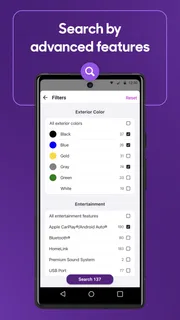
Before searching, decide which requirements are firm and which are flexible. A maximum price and a practical vehicle type are often better starting filters than a long wish list. If you need room for child seats or equipment, for example, put body style and space ahead of a minor feature you could live without. This keeps the first results relevant and prevents an attractive but unsuitable car from pulling you off course.
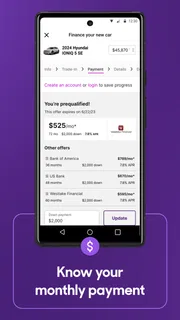
It also helps to think in terms of the whole ownership decision, not just the asking price. Your shortlist should reflect how you drive, where you park, and what you carry. A compact car may be easier in a crowded neighborhood, while a larger vehicle may make sense for regular family trips. The app can help you find candidates; your own routine determines which ones deserve a closer look.
Make the first search count
For a first search, I would choose a broad but realistic combination: the type of car you need, the area where you can reasonably shop, and a price range that leaves room for comparison. Then review the results before adding more restrictions. Tightening every filter at once can hide a good alternative simply because its listing uses a different trim name or leaves a detail unclear.
More articles

Instagram Makes Everyday Moments Worth Sharing
A rare social app that can be a photo diary, a neighborhood window, and a lively conversation in the same session—though its best moments still require a little restraint.
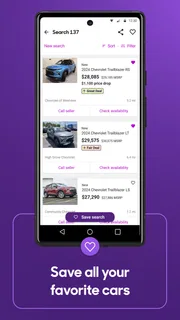
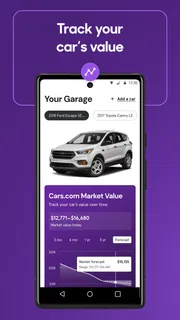
A useful first success is not necessarily finding the perfect car in one sitting. It is finding a small group of plausible options and being able to return to them without starting over. Cars.com is designed to let users track vehicle listings, so saving candidates as you browse is a sensible way to turn an open-ended search into a manageable comparison. I would save a car only when I can explain why it is worth revisiting, such as its size, location, or apparent fit for my budget.
Here is a realistic use case: you need a replacement vehicle before your current one becomes unreliable, but you can only browse during breaks. You search for a practical body style within a sensible radius, save several candidates, and revisit them later when you have time to compare. That small habit is more effective than trying to remember a seller’s name or reopening a string of browser pages.
Keep comparisons fair
When comparing listings, look beyond the headline price. Note the model year, mileage, trim, location, and any condition details the seller has included. A lower-priced vehicle may be less appealing once you account for a longer trip or a version that lacks a feature you need. Conversely, a listing that looks less exciting at first may be the better match if it is easier to inspect and fits your actual use.
One practical trick is to compare cars in pairs rather than ranking a long list all at once. Ask what the first candidate does better, what the second does better, and which difference matters in your daily life. This prevents small listing details from becoming a blur. It also makes it easier to notice when you are comparing unlike vehicles—for example, different trims or model years—rather than assuming two similar-looking results are equivalent.
Do not treat a saved listing as a verified recommendation. Listings can change, and a car that looks promising on a screen still needs careful questions and an in-person assessment. Before travelling, confirm that the vehicle is still available and ask about any detail that would change your decision. That simple check can save time, particularly when a candidate is far from home.
Where first-time users can get confused
The most common confusion in car shopping is assuming that a listing tells the whole story. It does not. Details may be presented differently from one seller to another, and a missing detail is a reason to ask, not a reason to guess. If two cars appear close, check whether you are comparing the same trim and equipment rather than relying on the model name alone.
Another easy trap is using too many filters before you understand the available choices. If a search looks strangely empty, relax one restriction at a time—perhaps expand the area or revisit a preference that is not essential. That approach helps you see whether the limitation is your criteria or simply the selection currently shown. I would keep a note of the filters that produce useful results so the next session starts from a known good search.
There is also a difference between tracking a listing and completing a purchase. Keeping a candidate handy is an organizational step; it does not confirm that the vehicle is available or reserve it. If you are ready to act, contact the seller through the options provided for that listing and arrange the next step directly. For someone who expects an app to handle every part of negotiation and purchase, that distinction may feel less seamless than a dedicated transaction service.
Using the app to sell your car
Cars.com is not only for people searching for their next vehicle; it also supports selling a car. If you are preparing to list yours, first gather accurate information about its year, trim, mileage, and condition. A clear, honest description gives shoppers a better basis for deciding whether to contact you. I would check every detail before publishing, because a small error can create avoidable back-and-forth or attract interest from people expecting something different.
Think about the buyer’s questions while preparing the listing. What would you want to know before travelling to see the car? Be straightforward about visible wear and explain relevant details in plain language. Good photos and a tidy presentation can help a listing make sense, but they should support accurate information rather than hide shortcomings. If you are not comfortable handling inquiries or arranging viewings, selling privately may not be the right route for you.
The selling side is most useful when you are willing to manage the human part of the process: responding to questions, confirming appointments, and deciding how to proceed with interested buyers. Someone who wants a dealer to handle the sale may prefer that more hands-off option, even if it means giving up some control over how the vehicle is presented.
Who will get the most out of it
I would recommend Cars.com to people who want a dedicated place to browse cars, keep track of candidates, and explore selling their own vehicle. It is especially handy if you are early in the process and need to understand what choices are available before committing to a particular model or seller. The app’s current version is 26.20.0, and it requires iOS or Android 11 or later, so it is worth checking compatibility before planning your search around it.
It may be less suitable if you are not ready to compare listings and would rather have someone choose a vehicle for you. It is also not the best fit if you need a guaranteed, fully managed purchase experience or already have a trusted local seller and a specific car in mind. In those cases, a direct conversation with the dealer or seller may get you to the important answers faster.
The app is free, which makes it easy to try while you are still deciding what kind of vehicle to buy. Cars.com has been available since March 2, 2011, and its focus remains clear: help people browse vehicles, follow listings, or put a car up for sale. I would judge its value less by how long I spend scrolling and more by whether it helps me create a shortlist that is genuinely easier to act on.
A sensible next step
After your first useful search, do not expand the shortlist endlessly. Choose a few serious candidates, compare their key details, and decide what you need to confirm before contacting anyone. If none feel right, adjust one search condition rather than starting from scratch. That gives you a clear next move without turning car shopping into a daily stream of half-remembered possibilities.
My recommendation is to use Cars.com as a calm starting point and a shortlist manager, while keeping your final judgement grounded in direct questions and an inspection. Its strongest contribution is helping you move from “I should look for a car” to a handful of specific options worth checking. If you approach listings as leads rather than promises, the app can make a large and sometimes tiring search feel more organized.
Pros
- Save favorite listings to compare cars later.
- Contact sellers directly through the app.
- Get alerts when saved listings change.
- Use VIN checks to review vehicle history.
- Browse listings from both dealers and private sellers.
Cons
- Listing availability can change before you contact a seller.
- Vehicle history reports may require an extra purchase.
- Some listings may have incomplete details or photos.
- Search results depend on the accuracy of seller information.
- The app is primarily useful in the United States.


