





Our review
 Analysis by Lookingapps
CapCut makes a strong first impression because it turns a phone into a capable place to assemble and polish short videos without making every edit feel like a technical project. I find it especially appealing when I have clips ready and want to shape them quickly into something watchable, rather than spend an evening learning a desktop editor. The catch is that a smooth first week does not automatically make it a lasting habit: the app is most valuable when I have a regular reason to make videos, and less compelling when I only open it for the occasional novelty.
Why the first week feels easy
The basic editing rhythm is approachable: bring in footage, arrange it on a timeline, trim the parts that drag, and add sound, text, or visual treatment where it helps. That combination suits quick personal projects as well as social clips. I can start with a simple cut and gradually add detail, instead of having to understand every option before making anything. For a new editor, that matters more than a long menu of tools.
CapCut is a video editor from Bytedance Pte. Ltd., in the video-player and editing category. Its appeal is not just that it can make a clip look busier; it gives me a way to make the pacing and emphasis feel deliberate. A well-placed title can explain a moment, while a clean trim can make a casual phone recording feel much more watchable. I would start with those basics before reaching for effects.
The app is free to download, and its broad audience is reflected in an average rating of three-point-five from around thirteen million ratings. That is a large, mixed crowd rather than a guarantee that every person will love the same workflow. It has passed one billion installs, which helps explain why it is a common name when people discuss mobile video editing, but popularity alone does not tell me whether it fits a particular project.
One useful first-week habit is to make a deliberately small edit: a short sequence from a walk, a meal, or a family visit. Pick one main idea, remove dead time, and add only the text or audio that supports it. This keeps the learning curve manageable and makes it easier to judge whether the editor’s timeline feels comfortable on your phone. It also prevents the common beginner mistake of treating every transition and effect as an improvement.
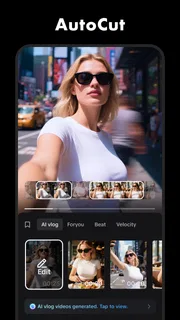
Templates and ready-made visual treatments can make experimentation feel inviting, especially when I want a quick result rather than a carefully built sequence. They are best treated as starting points, not as substitutes for editing judgment. If a template dictates a pace that does not suit the footage, I would rather adjust the cuts or choose a simpler approach than force the material to fit. The first week is where the app’s speed is most striking, but it is also where restraint pays off.
What keeps it useful from month to month
The longer-term value comes from repeatable jobs. A small business owner might make brief product demonstrations, a student might assemble clips from a project, and a parent might trim a collection of everyday moments into something worth sharing. In each case, the editor is useful when the same basic task returns often enough for a familiar workflow to save time. If I make one video every few months, the convenience may not outweigh the effort of getting reacquainted.
More articles

Instagram Makes Everyday Moments Worth Sharing
A rare social app that can be a photo diary, a neighborhood window, and a lively conversation in the same session—though its best moments still require a little restraint.
For recurring work, I would build a personal editing routine rather than rely on a new effect every time. Keep the opening short, use a consistent style for titles, and review the finished clip once with the sound on and once with it muted. That final muted pass is a practical check: it reveals whether the story still makes sense without relying on music or narration. These habits improve the result regardless of how many creative tools are available.
Automatic captioning, where available for the selected language and workflow, can be a useful first draft for spoken clips. I would still read every line and correct names, punctuation, and awkward breaks before sharing. Captions are especially helpful when someone watches without sound, but an unchecked transcript can introduce errors that make a polished video look careless. Treating automation as an assistant rather than an authority is a sensible way to save time without surrendering quality.
Another practical use is turning one longer recording into several focused extracts. Rather than squeezing every moment into a single edit, I can separate the strongest sections, give each a clear beginning, and remove pauses that only make sense in the original context. This requires judgment about what to leave out, not merely access to editing controls. CapCut is a better fit for that kind of quick restructuring than for projects where I need a highly controlled, detailed production pipeline.
The current version is nineteen point nine point zero, and the app was released on April tenth, twenty twenty. It runs on Android six or later, making it accessible to many older devices, though the experience of editing will still depend on the phone’s screen, storage, and overall responsiveness. I would avoid starting a large project with a nearly full device: keeping source clips organized and leaving room for exported files makes a mobile editing session less frustrating.
The upkeep behind a smooth editing habit
Editing on a phone is convenient partly because the footage is already there, but that convenience can turn into clutter. Before a project, I find it useful to decide which clips actually belong in it and to remove accidental duplicates from the selection. A crowded camera roll makes it easy to choose the wrong take, and a crowded timeline makes revisions harder. A few minutes of sorting at the beginning can save more time than adding a clever transition later.
Projects also need a little attention after the creative part. I would watch the exported result from beginning to end before sending it anywhere, checking that the opening is not abrupt, the audio levels feel comfortable, and text remains readable on a small display. This is particularly important when a video combines speech and music: music that seems balanced while editing can overwhelm a quiet voice when played through a different speaker. A final review is not busywork; it is the difference between an edit that looks finished in the timeline and one that works for its audience.
Storage is another ordinary but easy-to-miss maintenance issue. Video files take up more room than a handful of photos, and keeping every source clip and every revision indefinitely can make a phone harder to manage. I recommend deciding which originals and final exports are worth retaining, then clearing out material that has no future use. If a project matters, keep the source footage somewhere you can find it rather than assuming the edited copy will be enough for later changes.
There is also a learning-maintenance trade-off. A feature-rich editor rewards repeated use, but a person who returns only occasionally may forget where a particular control lives or how a project was assembled. I would keep a simple style consistent and avoid building an edit around an elaborate chain of effects that I could not reproduce later. A dependable, modest workflow is often more valuable than a one-off result that takes much longer to recreate.
CapCut is free, with in-app purchases listed from forty-nine cents to nine hundred dollars per item. That range makes it sensible to be deliberate around purchase prompts rather than assume every optional item is necessary for basic editing. I would begin with the free workflow, identify a specific recurring limitation, and only then decide whether any paid item is worth considering. The right question is not whether an extra is available, but whether it solves a problem I actually encounter.
Where the novelty can wear off
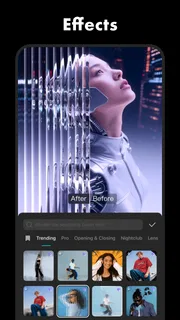
The same abundance that makes the first experiments fun can create fatigue. If every edit starts with browsing templates, effects, and styles, choosing a direction can take longer than making the video. Trends also age quickly: a treatment that feels lively today can make a personal clip feel dated later. I get more lasting value by using effects sparingly and giving the footage room to carry the meaning.
There is a practical difference between a quick social edit and a production that needs precise control. A phone timeline is convenient for trimming and arranging short material, but small controls and a compact screen can become tiring when a project involves many clips or careful adjustments. For long-form work, complicated audio mixing, or a workflow that depends on extensive file management, I would consider a desktop editor instead. CapCut can be a fast first pass, but convenience should not be confused with being the best tool for every job.
It is also worth considering how much guidance a finished video needs. A flashy sequence can distract from a simple point, while too much on-screen text competes with the image. I would decide what the viewer should notice first, then make the edit support that. If a clip already communicates clearly, a clean cut and a useful caption may be enough. The editor’s options are most helpful when they solve a visible problem, not when they invite decoration for its own sake.
People deciding whether to install it may also wonder whether it is appropriate for younger users. Its content rating is Teen, so I would take that into account when choosing an editing app for a child or teen and review the app’s current experience together rather than assuming that an editing tool is automatically suitable for every age. Likewise, creators who need a tightly controlled professional workflow may prefer software designed around that work, while casual editors may find the mobile-first approach a better match.
For comparisons, the usual alternatives split into two broad groups: simple phone editors that keep the interface minimal, and more involved desktop tools that offer room for detailed production. CapCut sits between them. It asks for more creative choices than a basic trim-and-join utility, yet it is easier to approach on a phone than a complex desktop setup. That middle ground is its strength, but it can also feel busy to someone who wants only to crop a clip and save it.
Does it earn a lasting place?
My answer depends on how often I make videos. If I regularly turn phone footage into short, shareable edits, CapCut earns its space through a convenient timeline, a low-friction start, and enough creative range to keep routine projects from feeling identical. If I rarely edit, or if I prefer a deliberately minimal tool, the menus and creative choices may feel like overhead rather than value. For demanding, long-form productions, I would reach for a more suitable desktop workflow.
The rating is a reminder that a huge audience does not make an app universally satisfying: it has around one hundred twenty-five thousand written reviews alongside its much larger rating pool. I would judge it by a small real project, not by its popularity or by an impressive template. Make a short edit from footage you already have, export it, and see whether you want to repeat the process next week. That is a more useful test of lasting value than a burst of first-day experimentation.
CapCut is at its best when it becomes a practical tool rather than a source of endless novelty. I would keep it installed for recurring short-video work, use a consistent editing routine, and be selective about effects, storage, and optional purchases. For occasional trimming, a simpler editor may be enough; for detailed production, a desktop alternative may be more comfortable. But if your phone is where the footage and the audience meet, this is a flexible editor that can make the whole process feel manageable without demanding a professional setup.
Pros
- Easy-to-use timeline makes basic edits quick to assemble.
- Keyframe controls allow precise animation of clips and effects.
- Auto captions can save time when adding subtitles.
- Templates offer a quick starting point for social videos.
- Exports support popular formats and social media aspect ratios.
Cons
- Some effects and editing tools require a paid subscription.
- Exported videos may include a CapCut watermark in some workflows.
- Large projects can use substantial storage and device resources.
- Cloud features may require an account and an internet connection.
- Advanced editing workflows can feel limited compared with desktop editors.


