

Our review
 Analysis by Lookingapps
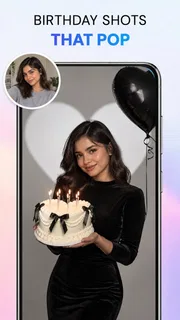
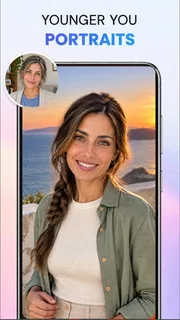
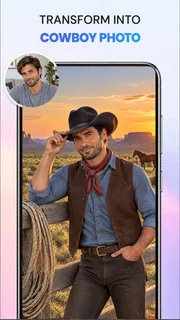
The first thing I’d use AI Photo Beauty Editor Studio for is a small, specific fix—not an ambitious makeover. Its appeal is the chance to describe an edit in ordinary language, then use AI-assisted tools for portrait retouching, background removal, object cleanup, or image enhancement. That makes it a practical option when a photo is nearly right but needs one more adjustment before I share it.
A careful workflow beats one big makeover
I’d begin by choosing a clear source image and deciding what actually needs attention. If the lighting is dull, I’d try enhancement first; if a distracting item pulls the eye away from a person, I’d focus on object removal instead. Keeping the goal narrow makes it easier to judge whether the result improved the photo or merely changed it.
That distinction matters with beauty editing. A portrait can benefit from a light touch, but strong retouching may smooth away skin texture or make facial details feel unnatural. I’d compare the result with the original before keeping it, especially around eyes, hair, and the edges of the face. The best edit is often the one a friend notices least.
For a background change, I’d inspect the outline around hair, shoulders, and small accessories rather than judging only the overall composition. Automatic separation can be useful, but fine edges are where a cutout is most likely to look conspicuous. If the photo is intended for a profile or a simple listing, a modest cleanup may be enough; a complex scene with overlapping objects asks more of the tool.
Prompt-based editing is most useful when the instruction describes one visible outcome. I’d ask for a restrained portrait correction or removal of a particular distraction rather than combine several unrelated requests in a single prompt. This gives me a clearer way to spot what changed and makes it easier to revise the request if the first attempt misses the point.
Choose the edit before choosing the prompt
A useful habit is to separate correction from styling. First address the issue that makes the photo less usable, such as an unwanted object or weak overall clarity. Only after that would I consider a beauty adjustment. Mixing cleanup and a dramatic look too early can make it hard to tell whether the underlying image was actually improved.
For example, imagine I take a quick portrait at a café and notice a bright sign behind my friend. I’d try removing that distraction, check the hairline and surrounding background, then decide whether the portrait needs any retouching. If the face already looks natural, I’d stop there. That sequence is more dependable than asking the editor to fix everything at once.
More articles

Instagram Makes Everyday Moments Worth Sharing
A rare social app that can be a photo diary, a neighborhood window, and a lively conversation in the same session—though its best moments still require a little restraint.
Check the result, not just the preview
Before treating an edit as finished, I’d look at the whole frame and then inspect the area that was changed. An object removal can leave an odd patch that is easy to miss when attention is fixed on the person. Likewise, enhancement may improve the impression at a glance while making fine details look too processed. A quick before-and-after comparison is a useful final check, not an invitation to keep editing indefinitely.
There is also a practical reason to keep the original image available: it gives me a reliable reference if the new version feels overworked. I would avoid treating an AI result as automatically reversible or assuming that every edit can be adjusted later. Save or retain the untouched source in the way I normally manage photos before relying on a result for something important.
Settings, habits, and where the tool fits
Because the app’s core idea is prompt-led photo editing, the most important “setting” is often the wording and scope of the instruction. I’d use plain, concrete language, identify the area or issue, and avoid asking for a broad transformation when I only want a correction. When an output looks wrong, I’d change one part of the request at a time rather than starting over with a longer, less focused prompt.
I would also check the app’s current version and the purchase choices shown in the app store before making it part of a regular workflow. The app is free to install, while optional in-app purchases range from $3.99 to $39.99 per item. That spread makes it sensible to try the basic experience first and decide whether the tools I actually use justify any spending. I would not pay based only on the promise of occasional convenience.
At the time of writing, the listed release date is March 12, 2026, and the current version is 1.3.3. It is made by ATQ - AI Lab and is a photography app for Android. The minimum operating-system requirement is Android 7.0, and its content rating is Everyone. I’d still check compatibility on the device I plan to use, especially if it is older, before building a routine around it.
Its audience numbers suggest it has found a sizable set of users: the average rating is 4.2 from around 5,500 ratings, with 83 written reviews and over one million installs. I treat that as useful context, not proof that every image type will produce a polished result. Photo editors can behave very differently depending on the subject, background, lighting, and how precise the requested change is.
Build repeatable habits without over-editing
For recurring tasks, I’d keep a simple personal checklist: choose the strongest source photo, make one targeted change, inspect the affected edge or texture, and compare against the original. This is not a special feature; it is a way to get more consistent results from an editor that responds to individual images and instructions. It also prevents a quick touch-up from turning into a string of edits that gradually changes someone’s appearance.
When editing a batch of similar portraits, I would not assume that the same prompt will produce identical results across every photo. Differences in pose, light, and background can make a request work well on one image and poorly on the next. I’d review each outcome separately and use the prompt as a starting point, not as a preset that guarantees uniform results.
A second helpful pattern is to reserve enhancement for photos that genuinely need it. Applying it automatically to every picture can flatten differences in lighting or detail that make an image feel authentic. If the photo already looks clear, I’d leave it alone and use the app only when a specific problem stands out. That is a better test of value than editing simply because the tool is available.
Where it falls short of conventional editors
Compared with a conventional photo editor built around manual controls, a prompt-driven approach can be quicker when I know what I want in everyday language. It is less appealing when I need exact, repeatable control over every adjustment. If a job depends on pixel-level masking, consistent brand colors, or careful retouching across a professional set, I would choose a more control-focused editor rather than expect AI instructions to replace precise hands-on work.
The same trade-off applies to object removal. It can save effort when a small distraction is isolated against a simple background, but a large object covering a patterned surface may be much harder to reconstruct convincingly. I would inspect the filled area at normal viewing size and at close range. If the missing detail is important or the background is complicated, manual editing or a different source photo may be the more reliable choice.
Prompt interpretation is another source of friction. A request that sounds obvious to me may still produce an edit that changes more than I intended. For that reason, I would avoid using the app as the only step in preparing a photo for a high-stakes purpose. For a casual social post, a slightly imperfect result may be acceptable; for a professional portrait or a product image where accuracy matters, I’d review carefully and consider a tool with finer manual adjustments.
I would also skip it if my main goal is to create elaborate composites, design graphics, or manage a large photo library. Its described strengths are focused on editing an individual image with AI assistance, not replacing every part of a broader creative workflow. Someone who wants detailed layer management or a complete cataloging system should look for an editor designed around those needs.
Who will get the most from it
I think this is best suited to casual photographers who often spot one fix after taking a picture: a background that needs simplifying, a small object that distracts, a portrait that could use a restrained touch-up, or an image that needs a general lift. The ability to express an edit in a prompt can feel more approachable than learning a set of manual controls, provided the user is willing to inspect the result rather than accept it blindly.
It is less suitable for people who dislike AI changes to faces, need dependable precision, or want every adjustment to match across a large collection. It may also disappoint anyone expecting a prompt to understand a complicated scene perfectly on the first attempt. I’d approach it as a convenient repair tool, not as a substitute for photographic judgment.
Overall, AI Photo Beauty Editor Studio earns its place as a focused, free-to-install photography app when the job is a quick, clearly defined correction. I’d keep my prompts narrow, preserve the original, check the edited edges, and stop as soon as the photo looks natural. With that measured approach, it can be handy for everyday portraits and small cleanups; when exact control or professional consistency matters more, a traditional editor is the better choice.
Pros
- AI tools can speed up common portrait edits.
- Beauty effects are easy to adjust for a natural look.
- Filters offer quick ways to change a photo's mood.
- The editor suits casual users with little editing experience.
- Finished images can be shared directly from the app.
Cons
- AI results may look unnatural on some faces.
- Advanced editing controls may be limited.
- Some features may require a paid upgrade.
- Ads can interrupt the editing process.
- High-resolution exports may take longer to process.


