
Our review
 Analysis by Lookingapps
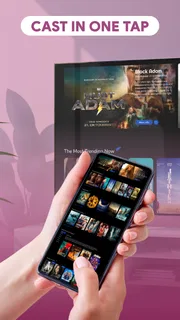
My first impression of AI Mirror: Screen Mirroring TV is that its appeal depends less on what you watch than on how easily your phone and television can connect. It is a free video player and editing app from Insumos XP, aimed at putting personal videos and photos on a larger screen. That sounds convenient for a family-room slideshow or a quick clip shared with friends, but casting is only effortless when the devices and network cooperate.
When the network is part of the experience
Screen mirroring is not the same as simply opening a video on your phone. The image has to travel from the mobile device to a display, and the connection can shape whether playback feels smooth or frustrating. With this app, I would treat a stable shared network as the sensible starting point: check that the phone and TV are connected as expected before settling in to watch.
That small bit of preparation matters most for longer videos. If a clip is important, I would first try a short one, confirm that the picture appears on the TV, and then start the full video. It is a practical way to catch connection trouble before everyone is waiting. For a few photos, a brief pause while the screen connects is a minor annoyance; for a long recording, interruptions are more noticeable.
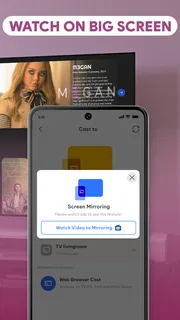
The app has a straightforward purpose, but “casting” and “mirroring” can mean different things in everyday use. Casting usually describes sending selected media to a screen, while mirroring suggests showing the phone’s display more broadly. The name points toward screen mirroring, and the app’s focus is sharing videos and photos. I would choose the content I want to show before starting rather than assume every app or every part of the phone will behave the same way on a TV.
Some televisions and streaming devices make media sharing easy through their own built-in tools. In that situation, I would compare the app’s connection flow with the TV’s native option: if the native route finds the screen quickly and plays the file reliably, there may be no reason to add another step. AI Mirror is more useful when I want a phone-based route for showing my own pictures or videos and prefer to try one app rather than browse through several device menus.
A practical routine before pressing play
For a living-room video night, I would connect while the room is still quiet, test with a short clip, and keep the phone nearby until playback is established. If the TV does not appear, I would check the network connection on both devices before repeatedly tapping through the app. That sequence is more useful than assuming the problem is the video itself.
There is also a simple quality trade-off: mirroring can be convenient, but it makes the phone part of the viewing chain. Notifications, incoming calls, or a change of app may distract from the shared screen, depending on how the mirroring session behaves. Before showing personal photos in front of a group, I would close anything I do not want displayed and select the album or clip in advance. That is good screen-sharing practice regardless of the app.
More articles

Instagram Makes Everyday Moments Worth Sharing
A rare social app that can be a photo diary, a neighborhood window, and a lively conversation in the same session—though its best moments still require a little restraint.
Where it fits into everyday mobile use
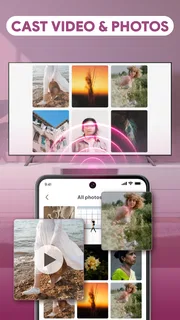
The clearest use case is casual sharing. I can picture arriving at a relative’s home with photos from a recent gathering and wanting everyone to see them without passing a phone around. The same applies to a short video that is fun to watch together but awkward on a small display. A phone-first workflow can be more natural than moving files onto a computer or signing into a television app.
It is less compelling when I only want to watch a mainstream streaming service. Those services often have their own casting controls or TV apps, which can be a cleaner way to start playback and avoid keeping the phone involved. This app’s stated focus is personal videos and photos, so I would not pick it as my first choice for building a streaming library, managing a media collection, or editing footage in detail. Its category is Video Players & Editors, but the practical draw here is sharing media on a larger screen.
For travel, the usefulness depends on the setup. In a hotel room, a compatible display and a workable network may make showing a few pictures easy; without those conditions, the app cannot turn an ordinary screen into a receiver by itself. I would not rely on it as the only way to present something important away from home. If a presentation has to work, carrying a suitable cable or using a display’s established connection method is a safer backup.
There is another mobile-context trade-off: the phone is both the controller and the source. That is handy when I want to choose the next photo myself, but less convenient if I need to use the phone for something else during playback. For a family slideshow, I would let one person operate the device and keep the rest of the group focused on the screen. For a solo viewing session, I would compare the experience with playing directly on the TV instead.
What to expect when a connection fails
The most useful thing to know about a connectivity app is what to try when the first attempt does not work. I would begin with the basics: confirm that the TV is ready to receive a connection, verify that the phone is on the intended network, and try reconnecting after checking both. If only one video fails, test a different photo or clip; if nothing appears, focus on the connection path rather than repeatedly changing media.
Keeping the test simple helps narrow down the issue. A single photo or short video is easier to troubleshoot than a long recording, a large album, or several changes in quick succession. Once a small test works, move on to the content you actually want to show. This is not a special feature claim; it is a sensible workflow for avoiding confusion when multiple devices are involved.
If the screen disconnects halfway through, I would pause and reconnect rather than keep tapping play on the phone and hope the TV catches up. I would also avoid switching between networks during a session. The aim is to change one thing at a time so it is clear whether the issue came from the receiver, the network, or the content. If the app still cannot find the display, using the TV’s own sharing option may be the quicker recovery route.
That is where expectations matter. A mirroring app can make an existing compatible setup easier to use, but it cannot guarantee that every television, network configuration, or media file will work identically. People who want a dependable presentation tool should test the exact setup ahead of time. For relaxed photo sharing, a little trial and error is usually tolerable; for a work meeting or a time-sensitive event, I would bring a fallback.
Data-conscious sharing and overall value
Sending videos and photos to a larger display can use more network activity than simply looking at them on the phone, especially when the content is lengthy. If I am using a limited mobile data plan, I would check whether both devices are on a trusted Wi-Fi connection before starting. I would also avoid assuming that a connection is private just because the screen is in the same room. Choose a network you trust, and be thoughtful about sharing personal images in shared spaces.
That caution is particularly relevant when visiting someone else’s home or using a public setting. I would share only the content I intend to show, keep the phone in hand, and end the session when finished. Those habits reduce the chance of accidentally leaving private material visible or continuing a connection longer than needed. They are simple steps, but they matter more than any promise of convenience.
AI Mirror: Screen Mirroring TV has an average rating of 3.2 from around 14,000 ratings, with about 406 written reviews, and it has passed 10 million installs. I read that as a sign of broad interest alongside a mixed reception, not as proof that it will work smoothly with every setup. The app is rated for Everyone, is free, and its current version is 1.0.2; it supports Android 8.0 and later. Its release date is April 1, 2026.
For me, the decision comes down to how often I need to show phone media on a TV and how much I value a dedicated mobile route. If I regularly share personal photos or short videos, I would try it and judge it on my own television and network. If I mostly use streaming services, need advanced video editing, or cannot tolerate connection troubleshooting, the TV’s built-in apps, native casting controls, or a wired connection may suit me better.
The best reason to try this app is convenience when the devices are already ready to work together. I would keep expectations practical: test the connection before an important moment, use a trusted network, and have another way to display essential content. With those habits, AI Mirror can be a useful option for casual big-screen sharing, while its network dependence makes it a less certain choice for situations where failure is not an option.
Pros
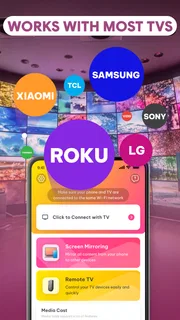
- Works with many smart TVs and streaming devices.
- Offers a simple way to share a phone screen on a larger display.
- Useful for showing photos and videos to a group.
- Can make mobile games easier to view on a TV.
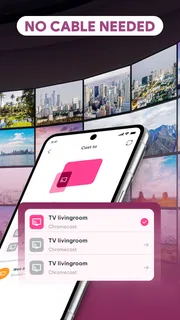
- No HDMI cable is needed for wireless mirroring.
Cons
- Mirroring quality depends on a stable Wi-Fi connection.
- Some TVs may require extra setup before connecting.
- Screen mirroring can drain the phone battery quickly.
- Audio or video may lag on slower networks.
- Compatibility can vary across phone and TV models.


